
IP Cloud is very handy: one line and the router has a name that follows its public address. But that name is your serial number, inside a MikroTik domain. If you’d rather have a name of your own, on your own domain, this howto shows two proven routes: one in five minutes, and one done properly.
Why look for an alternative?
The name IP Cloud gives you is serial-number.sn.mynetname.net. From it, two things are handed to anyone: that there’s a MikroTik at that address (the sn.mynetname.net domain is theirs), and that it’s a certain model from a certain era (the serial number isn’t random, batches are contiguous). It’s not a flaw: it’s a fingerprint. Someone hunting for targets can use it to narrow the field and try in a focused way.
How real is it? We measured it. We tried resolving one million consecutive serial numbers inside a real block (one of our own devices): 32 of them resolve — that is, 32 live MikroTiks, reachable on the internet, each with its public address, addresses we did not record. Trying random numbers across the whole space, almost nothing resolves: you don’t find “every MikroTik in the world”, you find whoever sits in a serial block you already know. A small thing, nothing a well-built input firewall doesn’t stop — but if you don’t want to announce that you have a MikroTik, your own name is the answer.
What you need
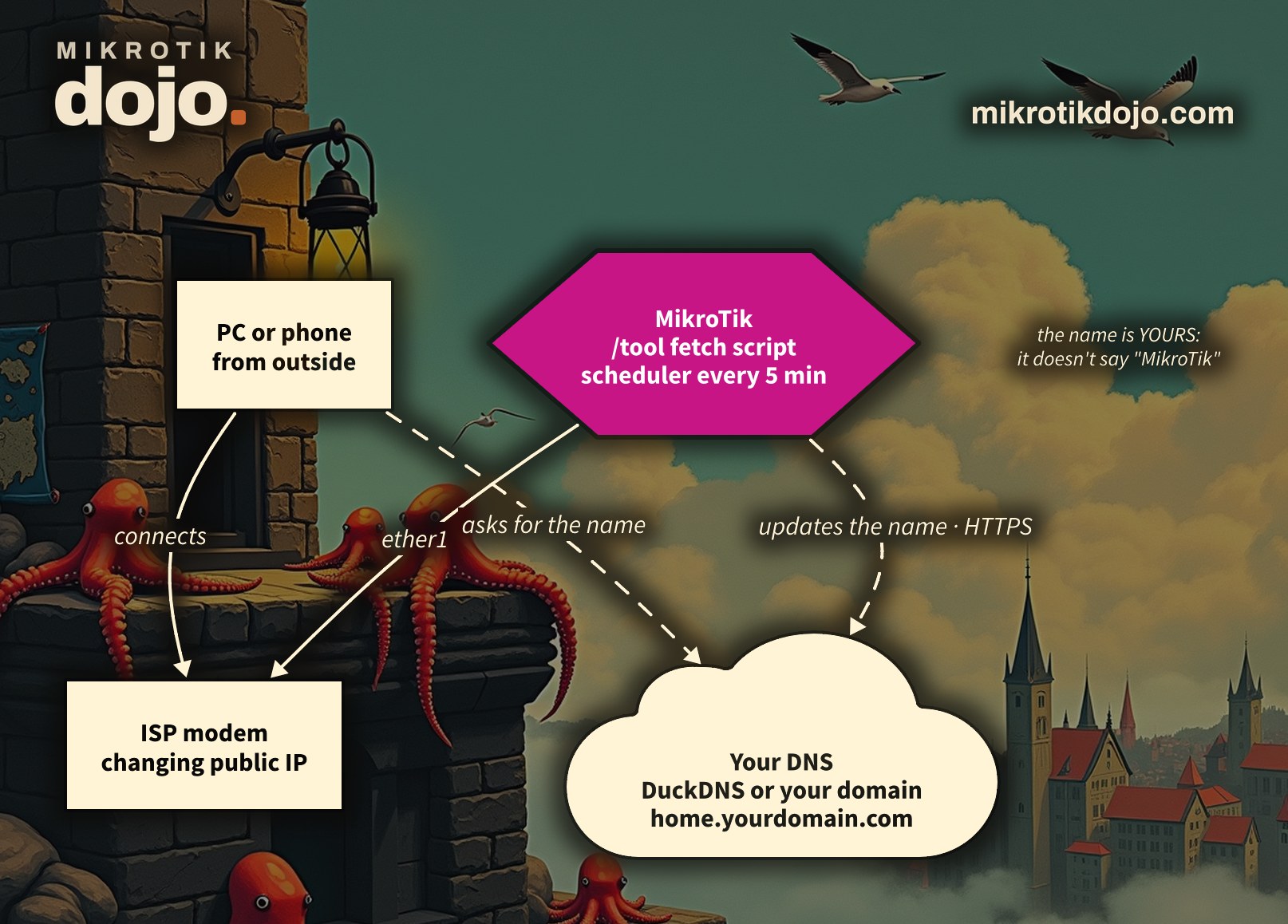
A dynamic DNS name. Two options: a free service like DuckDNS (a name like yourname.duckdns.org, no cost, five minutes), or your own domain with a DNS that has an API — here we use Cloudflare (a name like home.yourdomain.com, no fingerprint, the clean choice). In both cases the router updates the name by itself with a script and the scheduler.
Option 1 — DuckDNS, in five minutes
On duckdns.org you sign in with an account you already have, create a subdomain and copy the token. Then, on the MikroTik, this script: it updates the name and writes it to the log. DuckDNS detects your public address by itself from the sender of the request, so it works even behind the ISP modem.
# DuckDNS updater — put your subdomain and token below
:local host "myhome"
:local token "YOUR-DUCKDNS-TOKEN"
:local url ("https://www.duckdns.org/update?domains=" . $host . "&token=" . $token . "&ip=")
:local res [/tool fetch url=$url check-certificate=yes output=user as-value]
:log info ("DuckDNS: " . [:tostr ($res->"data")])
Two details that cost you an hour if you don’t know them: with a full url= you do not set mode=https (the scheme comes from the URL, otherwise you get bad parameter url), and the ? in the URL must not be escaped with a backslash. Save the script and run it every five minutes:
/system script add name=ddns-duck source=[:parse [/file get ddns-duck.rsc contents]]
/system scheduler add name=ddns-duck interval=5m on-event="/system script run ddns-duck"
Alternatively you paste the script body straight into the scheduler’s on-event. After a minute, from any PC, nslookup myhome.duckdns.org must answer with your public address.
Option 2 — your own domain with Cloudflare
This is the clean route: the name is on your domain, it says nothing about you. On Cloudflare you create an A record (even a dummy one, the script updates it), then an API token with Zone:DNS:Edit permission on the zone. You need the zone ID and the record ID (read them from the dashboard or the API). Behind NAT the router doesn’t know its own public address, so first it asks an “echo” service, then updates only if it changed.
# Cloudflare DDNS — update an A record on your own domain
:local zone  "ZONE_ID"
:local rec   "RECORD_ID"
:local name  "home.example.com"
:local token "CF_API_TOKEN"
# 1) current public IP (behind NAT the router asks an echo service)
:local ip ([/tool fetch url="https://api.ipify.org" check-certificate=yes output=user as-value]->"data")
# 2) update only when it changed
:global ddnsLast
:if ($ip != $ddnsLast) do={
  :local body ("{\"type\":\"A\",\"name\":\"" . $name . "\",\"content\":\"" . $ip . "\",\"ttl\":120,\"proxied\":false}")
  /tool fetch url=("https://api.cloudflare.com/client/v4/zones/" . $zone . "/dns_records/" . $rec) \
    http-method=put check-certificate=yes output=none \
    http-header-field=("Authorization: Bearer " . $token . ",Content-Type: application/json") \
    http-data=$body
  :set ddnsLast $ip
  :log info ("DDNS Cloudflare: " . $name . " -> " . $ip)
}
Same scheduler as before, every five minutes. The same pattern (a script calling the update over HTTPS) works for deSEC, Dynu, No-IP, FreeDNS: only the address and the way you authenticate change.
Watch out for CGNAT
No dynamic DNS lets you in if you’re behind a carrier CGNAT: the name points to the carrier’s NAT address, and that port isn’t yours. There you need a VPN that goes through a relay (like MikroTik’s Back To Home) — but that, again, marks you as a MikroTik. Otherwise, with a real public address, DDNS on your own domain does exactly the job of IP Cloud, without the fingerprint.
One thing that doesn’t change: the firewall
The name only helps you find the router, it opens nothing. Whether you use IP Cloud or a name of your own, security is done by the input firewall and by keeping RouterOS updated. If you’ve followed the basic hardening, being found or not makes little difference: nobody gets in from the WAN anyway.
Tested in the lab: DuckDNS update from a MikroTik running RouterOS 7.24.5 (stable), OK response and the name following the public address. The measurement on serial numbers is aggregate: no third-party IP address was read or stored.
Frequently asked questions
So is IP Cloud insecure?
No. IP Cloud is handy, and the router’s security doesn’t depend on the name but on the firewall. The point is only about privacy: the name says you’re a MikroTik and ties the serial number to the public address. If you don’t mind that, IP Cloud is perfectly fine.
DuckDNS or my own domain?
DuckDNS is the quickest and free, but the name ends up in duckdns.org. If you want a name that says nothing about you, use your own domain (for example with Cloudflare): that’s the clean choice.
Does it work behind the ISP modem?
Yes, if you have a real public address: DuckDNS detects it from the sender, with Cloudflare you ask an echo service. If instead you’re behind a CGNAT, no DDNS is enough: you need a VPN with a relay.
Do I have to keep IP Cloud on?
No. If you use your own DDNS, you can turn the IP Cloud DDNS off with /ip cloud set ddns-enabled=auto (leave it auto if you use Back To Home).