
Why is a “clean” router dangerous?
In the Dojo how-tos, we often start from /system reset-configuration no-defaults=yes: it is the best way to understand every step, without hidden configurations. But the router that results from this:
- has the user
admin(the first name every bot tries); - has services like telnet, FTP, WebFig, and API active, reachable from any interface;
- has no firewall: if the WAN has a public address, WinBox and SSH are exposed to the internet.
It takes only a few minutes online for the first access attempts to arrive. A router configured only for educational purposes is not deployable in production: first, perform the hardening described here.
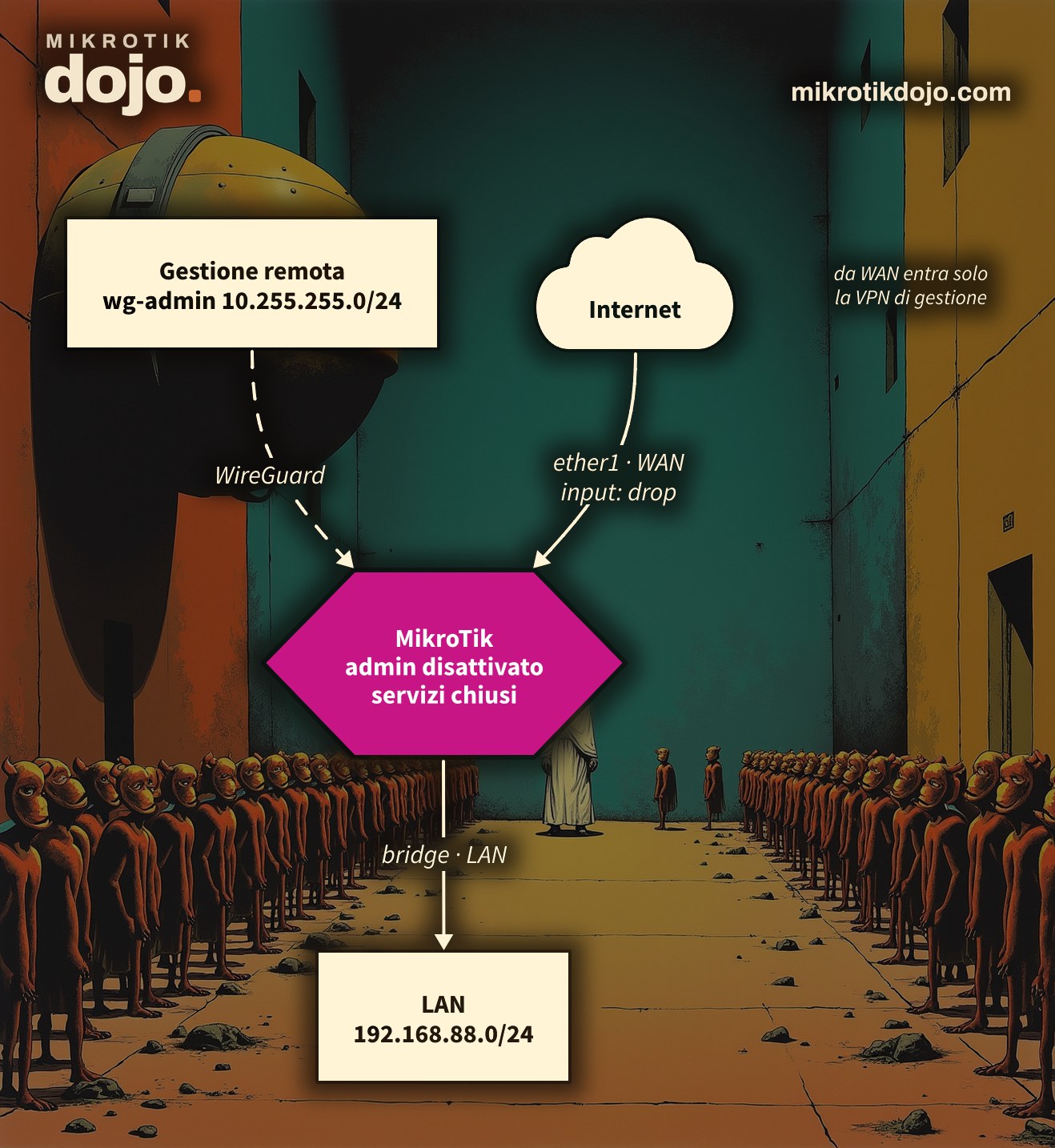
The example schema, with the addresses of my lab:
- WAN:
ether1,10.6.0.10/12, gateway and DNS10.0.0.1; - LAN:
bridge,192.168.88.1/24; - Management VPN: WireGuard, network
10.255.255.0/24.
⚠️ Warning: adapt interfaces and addresses to your network. To calculate networks and masks, there is the Dojo IP calculator. And always work in Safe Mode (in WinBox, the Safe Mode button; from the terminal, Ctrl+X): if a rule locks you out, upon disconnection, the router automatically reverts the changes.
Step 1: how do I update RouterOS?
The first defense is an updated system: many RouterOS vulnerabilities (you can find the CVE sheets on the Dojo) are already fixed in recent versions.
/system package update set channel=stable
/system package update check-for-updates
/system package update install
After the reboot, on RouterBOARDs, the board firmware (RouterBOOT) is also updated, requiring a second reboot. On CHR and x86, this menu does not exist, and this step is skipped:
/system routerboard upgrade
/system reboot
Step 2: how do I replace the admin user?
The name admin is the first one every brute-force attack tries. Create a user with a different name, in the full group, with a long password:
/user add name=gianni-adm group=full password="una-password-lunga-e-unica"Disconnect and log back in with the new user, then disable admin:
/user disable adminDo not delete it before verifying that the new user works: it is the quickest way to lock yourself out. If you work with multiple people, use one user per person: the log will show who did what.
Step 3: which services do I keep active?
Only those you actually use. Let’s see what is active:
/ip service printUsually, WinBox and SSH are enough. Turn off everything else:
/ip service disable telnet,ftp,www,api,api-ssl,reverse-proxyAdd the Available From field (available-from; in older tutorials it is called address, which still works but is deprecated) to the remaining services, i.e., the networks from which they can be used: the LAN and the management VPN.
/ip service set winbox available-from=192.168.88.0/24,10.255.255.0/24
/ip service set ssh available-from=192.168.88.0/24,10.255.255.0/24
From any other address, the router immediately closes the connection without displaying the login. However, note that the port remains visible. In the lab, from an address outside the list, the TCP connection to 8291 would open and then close immediately. It is the firewall in Step 5 that truly hides the services: Available From is the second belt, not the first. All services and their ports are listed in the MikroTik manual: Services.
Step 4: how do I close the “peripheral” services?
RouterOS has several network services that are not needed on the WAN and should be restricted to the LAN or turned off. First, let’s define the interface lists, which we will also use in the firewall:
/interface list add name=WAN
/interface list add name=LAN
/interface list member add list=WAN interface=ether1
/interface list member add list=LAN interface=bridge
Then:
/ip neighbor discovery-settings set discover-interface-list=LAN
/tool mac-server set allowed-interface-list=LAN
/tool mac-server mac-winbox set allowed-interface-list=LAN
/tool mac-server ping set enabled=no
/tool bandwidth-server set enabled=no
/ip proxy set enabled=no
/ip socks set enabled=no
/ip upnp set enabled=no- Neighbor discovery and MAC server: the router is visible (and manageable via MAC with WinBox) only from the LAN;
- bandwidth-server: very useful for testing, but should only be enabled when needed;
- proxy, socks, UPnP: if you don’t use them, turn them off.
If the router acts as a DNS server for the LAN, allow-remote-requests=yes is fine only with the firewall from Step 5, which blocks DNS requests from the internet; otherwise, the router becomes an amplifier for DDoS attacks.
Step 5: what is the minimum firewall?
The principle is simple: from the WAN, only what I explicitly allow enters. The router accepts responses to already established connections, ping, management VPN, and LAN traffic; everything else coming from the internet is dropped.
/ip firewall filter
add chain=input action=accept connection-state=established,related,untracked comment="IN: risposte"
add chain=input action=drop connection-state=invalid comment="IN: pacchetti invalidi"
add chain=input action=accept protocol=icmp comment="IN: ping"
add chain=input action=accept protocol=udp dst-port=13231 in-interface-list=WAN comment="IN: WireGuard di gestione"
add chain=input action=accept in-interface-list=LAN comment="IN: dalla LAN"
add chain=input action=accept in-interface=wg-admin comment="IN: dalla VPN di gestione"
add chain=input action=drop comment="IN: tutto il resto"
add chain=forward action=fasttrack-connection connection-state=established,related comment="FW: fasttrack"
add chain=forward action=accept connection-state=established,related,untracked comment="FW: risposte"
add chain=forward action=drop connection-state=invalid comment="FW: pacchetti invalidi"
add chain=forward action=drop in-interface-list=WAN connection-nat-state=!dstnat comment="FW: niente da internet se non port forward"
Order matters: rules are read from top to bottom, and the first matching rule wins. The final rule drop in the chain input is the one that closes the router to the internet: add it only after verifying that the LAN rule allows you in (this is where Safe Mode saves you).
On CRS3xx and CRS5xx switches, as well as CCR2116 and CCR2216 routers, the fasttrack rule also accepts hw-offload=yes, which offloads connections to the switch chip. On other routers, that parameter does not exist: RouterOS returns bad parameter hw-offload and the rule is not created. That is why it is not included here.
With IPv6, the reasoning is the same, and it must be done even if you do not use IPv6: many ISPs assign it without asking.
/ipv6 firewall filter
add chain=input action=accept connection-state=established,related,untracked comment="IN6: risposte"
add chain=input action=drop connection-state=invalid comment="IN6: invalidi"
add chain=input action=accept protocol=icmpv6 comment="IN6: ICMPv6 (indispensabile)"
add chain=input action=accept protocol=udp dst-port=546 src-address=fe80::/10 comment="IN6: client DHCPv6"
add chain=input action=accept in-interface-list=LAN comment="IN6: dalla LAN"
add chain=input action=drop comment="IN6: tutto il resto"
add chain=forward action=accept connection-state=established,related,untracked comment="FW6: risposte"
add chain=forward action=drop connection-state=invalid comment="FW6: invalidi"
add chain=forward action=accept protocol=icmpv6 comment="FW6: ICMPv6"
add chain=forward action=drop in-interface-list=WAN comment="FW6: niente da internet"
In IPv6, ICMP must not be blocked: without it, the network does not function (neighbor discovery, path MTU).
Step 6: how do I manage the router remotely?
Use a VPN, never expose WinBox or SSH to the internet. WireGuard is integrated in RouterOS 7, is fast, and can be configured with a few commands:
/interface wireguard add name=wg-admin listen-port=13231
/ip address add address=10.255.255.1/24 interface=wg-admin
/interface wireguard print
The VPN network (10.255.255.0/24) must be different from all networks already in use: check it with the IP calculator.
The last command displays the router’s public key, which you need to enter into the WireGuard client on your laptop. Then, add the laptop as a peer, using its public key:
/interface wireguard peers add interface=wg-admin public-key="CHIAVE-PUBBLICA-DEL-PORTATILE" \
    allowed-address=10.255.255.2/32 comment="Portatile Gianni"
The firewall from Step 5 already accepts UDP port 13231 from the WAN and traffic arriving from interface wg-admin; the services from Step 3 already accept network 10.255.255.0/24. From the laptop, with the VPN active, you can access WinBox on 10.255.255.1.
Step 7: what do I check at the end?
A quick verification, to be repeated on every router before handing it over:
/user print
/ip service print where !disabled
/ip firewall filter print stats
/ipv6 firewall filter print stats
/system package update print
Then run two tests from outside (for example, from a phone without WiFi): WinBox and SSH to the WAN address must not respond, while they must work when the VPN is active.
Last thing: a backup of the configuration, stored outside the router.
/system backup save name=dopo-hardening
/export file=dopo-hardening
To go deeper, MikroTik has its own checklist in the MikroTik manual: Securing your router.
How it works internally, in the Dojo Knowledge base: interface lists, chains and firewall rule order, Safe Mode, address lists.
Tested in the lab on PNETLab with CHR RouterOS 7.24.5 (stable), starting from a router reset with no-defaults=yes: all commands from steps 1–7, IPv4 and IPv6 firewall, WAN ports tested from an external client before and after applying the firewall, WireGuard management VPN from a second router. The RouterBOOT update cannot be tested on a CHR.
Frequently asked questions
Does a MikroTik reset with no-defaults=yes have a firewall?
No. With no-defaults=yes the router restarts with no firewall rules and with management services active: this is fine for the lab, but hardening is required before putting it on the network.
Is changing the admin user password enough?
It is the minimum, but not enough: it is better to create a user with a different name in the full group and disable admin, so a brute force attack must also guess the username.
What is Available For used for in IP services?
The Available From field (available-from in /ip service) limits a service, for example WinBox or SSH, to the specified networks: from any other address, the router immediately closes the connection. However, the port remains visible, so an input firewall is still required.
Can I leave WinBox open on the internet with a strong password?
Better not: WinBox service vulnerabilities in the past have been exploited without needing a password. Remote management should be done through a VPN, for example WireGuard, keeping WinBox closed to the internet.
Do I need an IPv6 firewall even if I don’t use IPv6?
Yes. Many operators assign IPv6 addresses automatically: without an IPv6 firewall, the router and LAN devices can be reachable from the internet without you knowing it.