
When is it worth resetting a MikroTik?
When you pull a unit out of the box to configure it from scratch, before you load a full configuration script, and above all when you inherit a router whose history nobody remembers. A configuration layered up over the years always hides some forgotten rule, usually the one that costs you an afternoon. Starting clean is cheaper than playing archaeologist.
The path in short: backup, reset, access to the empty router, protection before you put it on the network.
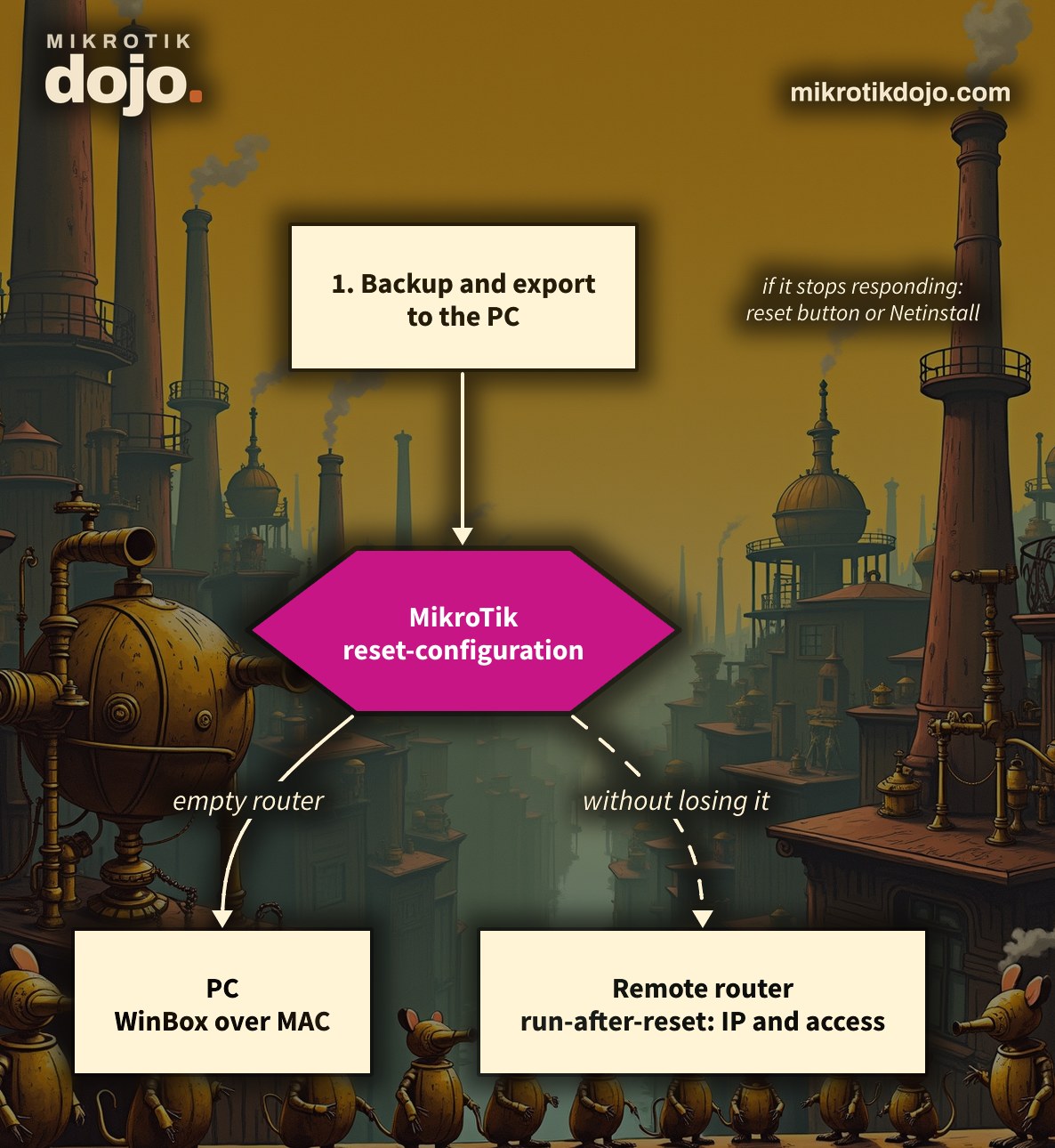
Step 1: how do I save the configuration before the reset?
With two files, because they do different jobs:
- the binary backup (
.backup): it restores everything, but on the same unit or on an identical one; - the text export (
.rsc): you read it with an editor and reuse it in pieces, even on a different model.
/system backup save name=before-reset password=a-strong-password
/export file=before-reset
Two details that make the difference in RouterOS 7:
- without
password=the backup is not encrypted: whoever has the file has your configuration, passwords included; - the export does not contain passwords and keys. If you need those too, add
show-sensitive(/export show-sensitive file=before-reset) and treat the file like a password.
Then download the two files from the Files menu in WinBox onto your PC. On models that have a flash folder, anything outside flash lives in RAM and disappears on reboot: a backup left there is gone.
Step 2: how do I reset the router from RouterOS 7?
To start over completely empty, without the factory configuration:
/system reset-configuration no-defaults=yes skip-backup=yesRouterOS asks for confirmation (Dangerous! Reset anyway? [y/N]): answer y and the router reboots. You do the same thing from WinBox under System → Reset Configuration. All the options of the command are in the MikroTik manual: Configuration Reset.
no-defaults=yes: the router comes back with no addresses, DHCP, NAT or firewall;skip-backup=yes: no automatic backup before the reset (you already did it yourself in step 1).
Without no-defaults=yes the router goes back instead to the model’s factory configuration: for an hAP that means a LAN bridge, a DHCP server, NAT and a basic firewall. Handy at home, almost never what you want in a professional install.
After the reset the user is admin, with an empty password or, on recent models, with the password printed on the unit’s label.
⚠️ Warning: a router that comes back up with no-defaults=yes has no firewall and all management services open. On the bench it’s perfectly fine, but before you put it on the network, even just on the LAN, follow the Basic hardening of a MikroTik router.
And if I want to keep the users?
/system reset-configuration no-defaults=yes skip-backup=yes keep-users=yeskeep-users=yes preserves users and passwords and, I’ve tested it, the SSH keys too: after the reset you log in with the same key as before. Handy when you manage the router only over SSH with a key.
Step 3: how do I reset a remote router without losing it?
This is the tricky case: a unit on a tower or at another site, reachable only over the network. If you reset it empty it loses its address, and at that point the only way to see it again is to climb the tower. The solution is run-after-reset: right after the reset the router runs a script that gives it back at least connectivity.
First you write the script and upload it to the router, from WinBox (drag the file into the Files window) or over SCP. A minimal example, with my lab’s addresses (WAN 10.6.0.20/12, gateway and DNS 10.0.0.1):
⚠️ Warning: adapt the address, gateway and DNS to the network your router is on, otherwise after the reset it won’t be reachable.
:delay 30s
/ip address add address=10.6.0.20/12 interface=ether1 comment="WAN"
/ip route add dst-address=0.0.0.0/0 gateway=10.0.0.1
/ip dns set servers=10.0.0.1
/user set admin password="change-me-now"
/ip service set telnet,ftp,www,api disabled=yes
Before you save the script, check the address with the Dojo IP calculator: a netmask mistake here means a router that’s unreachable after the reset.
What each line does:
:delay 30sgives the interfaces time to show up (on models with many ports, or with SFP and LTE modules, they take longer than expected): without it, the script can start whenether1doesn’t exist yet and fail silently;- address, default route and DNS give the router back its way to you;
- the password keeps the router from staying on the network as
adminwith no password; - the last line turns off, in one shot, the cleartext management services (telnet, FTP, WebFig over HTTP, API).
Then the reset itself:
/system reset-configuration no-defaults=yes skip-backup=yes run-after-reset=base.rscOn models with the flash folder the script goes in there and the path becomes run-after-reset=flash/base.rsc. The script has to finish within 2 minutes, otherwise RouterOS stops it and you find runtime limit exceeded in the log.
⚠️ Warning: before you do this on a remote router, test the script on an identical unit on the bench. A typo in the remote script is paid for in miles.
Step 4: how do I reconnect to the empty router?
If you used run-after-reset, the router comes back at the address you gave it in the script. If instead it came back empty, it has no IP: open WinBox, go to the Neighbors tab, click on the router’s MAC address and log in with admin. This only works if the PC is connected to the same network segment as the router, with no router in between.
A quick check from the terminal to see that the reset went the way you wanted:
/ip address print
/ip service print where disabled
/user print
Step 5: and if the router stops responding?
Then you move to the reset button. The sequence, holding the button down while you apply power:
- you release when the LED (usually the USR one) starts blinking: the router comes back with the factory configuration;
- if you keep holding for about another 5 seconds, until the LED stays on solid: the router comes back in CAPs mode, ready for a CAPsMAN controller;
- if you hold on until the LED goes off: the router enters Netinstall mode and looks for a Netinstall server on the network.
The button doesn’t ask for confirmation: watch how long you hold it down.
The last resort is Netinstall: it reinstalls RouterOS from scratch from a PC connected over the network. You use it when the router won’t boot anymore, when you’ve lost the password of a unit with no backup, or to go back to an earlier version cleanly.
Step 6: what do I do before I put it back on the network?
A freshly reset router is a blank sheet, and a blank sheet plugged into the internet doesn’t last long. Before production:
- follow the Basic hardening of a MikroTik router: a user other than
admin, limited services, a firewall toward the internet; - if you saved the export in step 1, pick back up only the pieces you need, not the whole file: it’s the right moment to leave the forgotten rules behind.
Tested in the lab on PNETLab with CHR RouterOS 7.24.5 (stable): backup and export, reset with no-defaults, keep-users and run-after-reset. The reset-button sequence can’t be tested on a CHR: it comes from the MikroTik documentation.
Frequently asked questions
What’s the difference between no-defaults=yes and a normal reset?
With no-defaults=yes the MikroTik comes back with no configuration at all; with a normal reset it comes back with the model’s factory configuration, which usually includes a LAN bridge, a DHCP server, NAT and a basic firewall.
What’s the password after the reset?
The user is admin. On older models the password is empty; on recent ones it’s the password printed on the unit’s label. With keep-users=yes the previous users and passwords stay instead.
Does keep-users=yes also keep the SSH keys?
Yes: I tested it on RouterOS 7.24.5, after a reset with keep-users=yes you log in with the same SSH key as before.
After the reset I can’t see the router on the network anymore, what do I do?
With WinBox you connect over the MAC address from the Neighbors tab: it works even when the router has no IP address, as long as the PC is on the same network segment.
Does the export contain the passwords?
No, in RouterOS 7 the export hides passwords and keys. To include them you use /export show-sensitive, and the file has to be guarded like a password.
Can the .backup file be loaded onto a different model?
It’s not recommended: the .backup file contains hardware-tied data, such as the MAC addresses. To move a configuration to a different model you use the text export (/export), adapting it by hand.
Where do I save the script for run-after-reset?
On models that have the flash folder it has to be saved there, because everything outside is in RAM and is lost on reboot; the path becomes run-after-reset=flash/base.rsc. On the others, just upload it to the file list.
This howto updates to RouterOS 7 a 2015 article from my old blog wirelessguru.it, now offline.