
«If I already log in with a username and password, what do I need an SSH key for?» It’s the first question everyone asks. The short answer is that the key isn’t there to make your login more comfortable: it’s there to get rid of the password — the thing scanners try to guess all night long, and the thing your automation (backups, Ansible, scripts) can’t type. In this article we generate a key, import it into a MikroTik, log in with no password, turn off password login on SSH entirely, and then — as always — point a sniffer at the wire to see packet by packet what really travels during a key-based login. At the end we also look at the two awkward sides nobody talks about: what ends up in export and in backups. This is episode #0 of a new series, «Linux + RouterOS»: a Linux box that manages, automates and watches over your MikroTiks — and it all starts here, because every machine-to-machine automation needs this key.
It connects to the howto what a scanner sees of a MikroTik (there the btest/API login travelled with its MD5 digest in clear: here we’ll see the opposite) and to the KB on certificates and the chain of trust, because this too is about public and private keys.
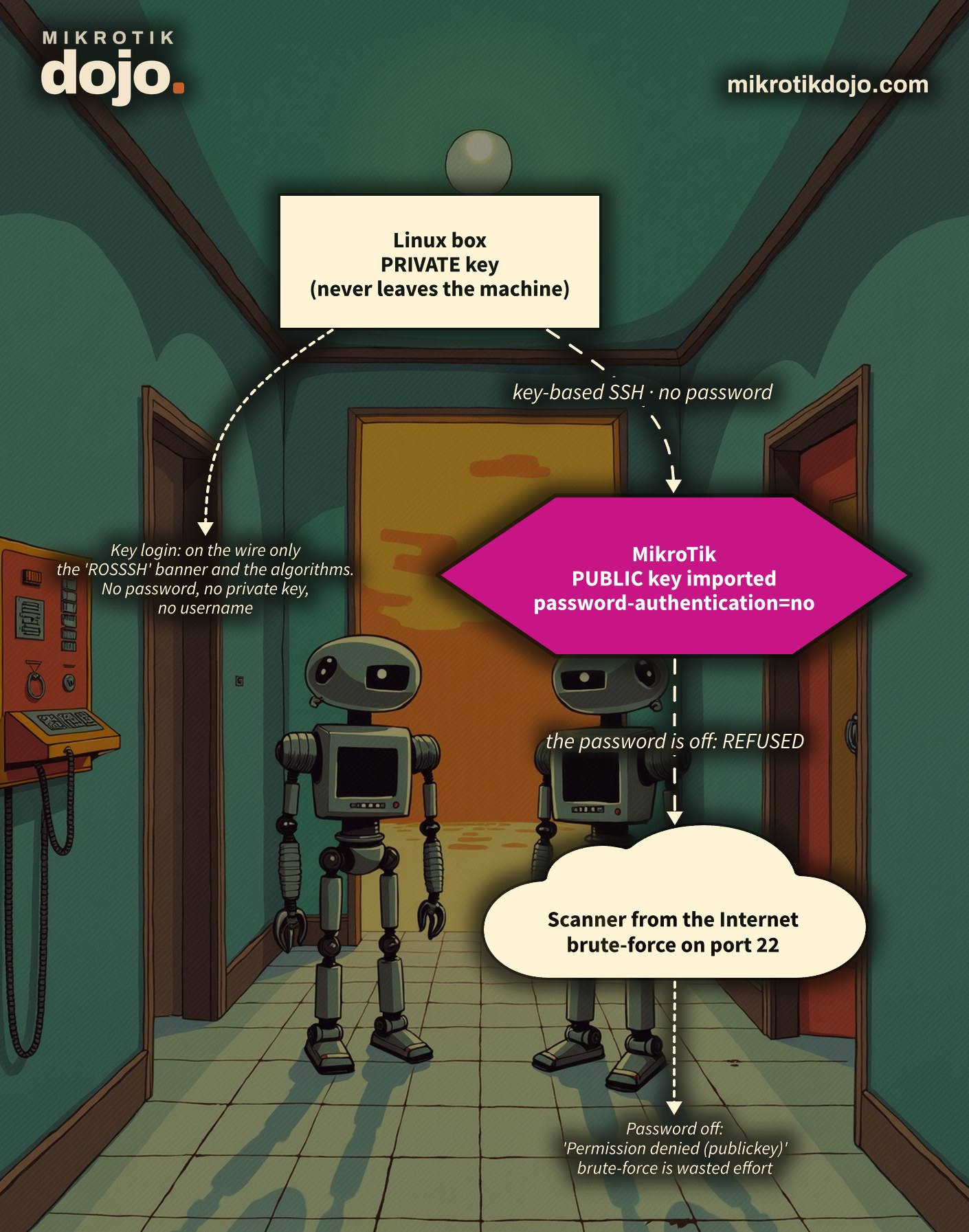
Step 1: two classic questions, two clear answers
Before touching a command, let’s clear up two doubts that trip everyone.
«What do I need a key for if I already have a username and password?» A password is a shared secret: it lives in your head and inside the router, and anyone who guesses it gets in. A key is an asymmetric pair: the private part stays on your computer and nobody sees it, not even the router; on the router you put only the public part, which doesn’t let anyone in but only recognizes you. Three concrete benefits: no password to brute-force on port 22; one key per machine, so you revoke the key of a decommissioned server without touching the others; and above all you can turn the password off, making scanners’ attempts pointless.
«Once the key is in, does Winbox stop asking me to log in too?» No. Let’s be clear right away: the SSH key is only for SSH. Winbox (port 8291), the API (8728/8729) and Webfig keep using username and password. The key isn’t a universal pass to the router: it’s your machine’s identity on the SSH service, and that’s it. (A wish here: being able to tie a key to the other access paths too would be handy — we trust MikroTik will consider it in the future. For now, for Winbox/API, strong passwords remain.)
Step 2: generate the key (on your computer, not on the router)
The key is created on the machine you’ll connect from — your PC, or the «Linux box» you’ll use for backups and automation. You use ssh-keygen, included in Linux, macOS and Windows. Two sensible choices today:
# ed25519 — the recommended choice: short, fast, robust
ssh-keygen -t ed25519 -C "oxidized@linux-box"

# alternatively, RSA 4096-bit (compatibility with older systems)
ssh-keygen -t rsa -b 4096 -C "admin@linux-box"
The field after -C is just a comment (usually «who@where»): it’ll show up on the router and helps you know which machine the key belongs to. The command produces two files. The private one (id_ed25519) must never be moved or copied onto the router: protect it, optionally with a passphrase. The public one (id_ed25519.pub) is a single line, and it’s the one you’ll bring to the MikroTik:
ssh-ed25519 AAAAC3NzaC1lZDI1NTE5AAAAIPSAiUCx+4+GUcHrU8dW0etpS9Si3gvGDEYHUaU8d2vy oxidized@linux-boxThe difference between the two families is visible right in the files: the ed25519 private key weighs about 411 bytes, the RSA 4096 one over 3200. For the same strength, the elliptic one is far more compact — which is why it’s the default recommendation.
Step 3: import the public key and log in without a password
On the MikroTik you need to bring the public file over and assign it to a user. You can upload it with scp, or — if the router can reach a resource of yours — with /tool fetch. Then the import:
# on the router: the id_ed25519.pub file was uploaded first
/user ssh-keys import public-key-file=id_ed25519.pub user=admin

# check
/user ssh-keys print
#  USER   KEY-TYPE  BITS  INFO
0  admin  ed25519    256  oxidized@linux-box
Done. Now from your computer you log in without being asked for a password:
ssh -i id_ed25519 admin@ROUTER-IP
# ... router prompt, no password request
The router compared the signature produced by your private key against the public one you gave it, recognized you and let you in. The password was neither asked for nor transmitted.
Step 4: under the sniffer — what actually travels
«No password transmitted» is a claim to be shown, not told. We put a Linux box listening on the segment (tcpdump -i … -s 0 "tcp port 22") and redo the key-based login. The session is 49 packets. After the three packets of the TCP three-way handshake, the first readable things are the two version banners, in clear:
client → router:  SSH-2.0-OpenSSH_7.6p1 Ubuntu-4ubuntu0.3
router → client:  SSH-2.0-ROSSSH
First interesting fact: the RouterOS SSH server signs itself ROSSSH. It’s the only «identity» it gives away: that banner is enough for a scanner to know there’s a MikroTik behind port 22. Right after comes the KEXINIT exchange, also in clear — but note: there are no secrets here, only the list of algorithms the two sides are willing to use. Here’s what the router offers, pulled from the packet:
key exchange:  curve25519-sha256, ecdh-sha2-nistp256/384/521,
               diffie-hellman-group-exchange-sha256, group14/16/18
host key:      ssh-ed25519, rsa-sha2-256, rsa-sha2-512, ssh-rsa
ciphers:       chacha20-poly1305, aes128/192/256-ctr, aes*-gcm, aes*-cbc, 3des-cbc
integrity (MAC): hmac-sha2-256/512, umac-128/64, hmac-sha1
From this point on, darkness: the two sides derive a session key and everything else — including the moment you authenticate — travels encrypted. Want proof? In the whole capture the SSH-2.0 strings are two (the banners), and a search for password, for BEGIN OPENSSH (the header of a private key) or for the key file’s name yields zero results. On the wire there is no password, no private key, no username in clear.
It’s the exact opposite of what we saw scanning the bandwidth test, where the login travelled with its MD5 digest in clear, brute-forceable offline. And it’s worth saying: even if you had used the password over SSH (instead of the key), it would still have ended up inside this encrypted channel — SSH, unlike non-TLS API/btest, always protects the content. The key goes one step further: the password simply doesn’t exist.
Step 5: the hardening that counts — turn off the password
As long as «key» and «password» coexist on the router, a scanner can still try to guess the password. The good part comes now. Let’s look at the service setting:
/ip ssh print
  password-authentication: yes-if-no-key
The RouterOS 7 default is telling: yes-if-no-key. It means that as soon as a user has an imported key, for that user the SSH password is refused by itself. Let’s verify: with admin‘s key already loaded, we try to get in forcing password only —
ssh -o PubkeyAuthentication=no admin@ROUTER-IP
admin@ROUTER-IP: Permission denied (publickey).
The server offers only the key method: the password isn’t even accepted as an attempt. And to close it fully — even for users who don’t (yet) have a key — there’s the global switch:
/ip ssh set password-authentication=noFrom here on any password login over SSH is refused; only keys get in. Practical result: scanners’ brute-force on port 22 — the kind that fills the logs — becomes wasted effort, because there’s no longer a password method to attack. (The key, of course, keeps working.) It’s the same spirit as our «what a scanner sees, and what it can do» thread: here we take away the one thing it could try.
Step 6: the two awkward sides — export and backup
Honesty first: a key isn’t magic, and two details are worth knowing. First, the public key shows up in the configuration export:
/export
...
/user ssh-keys
add info=oxidized@linux-box key="ssh-ed25519 AAAAC3NzaC1lZDI1NTE5..."
/ip ssh
set password-authentication=no
Second, the public key survives in the binary backup. We verified it: after a /system backup save, a simple strings on the file finds the whole ssh-ed25519 AAAA… oxidized@linux-box line. It’s important to understand what this means and what it does not: these are always public keys — no secret leaks, the private part is never on the router (it’s neither in the export nor in the backup, because it never got there). But the export and the backup effectively contain the list of who can get in: treat them as sensitive material — a backup is an inventory of trust, not just of configuration.
Rotation and revocation are immediate precisely thanks to «one key per machine». Decommissioning a server? Remove its key and that machine is out, the others don’t notice:
/user ssh-keys print
/user ssh-keys remove [find info="oxidized@linux-box"]
In the lab, right after removal, that machine’s key login answers Permission denied (publickey); and with the password already off, that computer is out of SSH. A security (and survival) note: console and Winbox stay — precisely because, as said in Step 1, keys are only for SSH. So always keep a way back in (an open Winbox session, or console access) before turning off the password, so you don’t lock yourself out.
Step 7: why all this — the real reason is automation
The convenience of not typing the password is the least of it. The real point is that automation has no fingers: a nightly config backup, a git versioning changes, a playbook applying a hardening baseline across twenty routers — all things that run with nobody at the keyboard, and that therefore can’t use an interactive password. They need the key. We already tasted it: that same key login let us pull the router’s backup down with a plain scp, no password — and it’s exactly the brick the tools of the next episodes rest on.
Because this is #0 of the «Linux + RouterOS» series: a Linux box next to your MikroTiks. From here we’ll build a CrowdSec that bans hostile IPs by pushing them into a router address-list, an Oxidized that makes versioned config backups over key-based SSH, an Ansible that applies configuration as code. They all talk to the router machine-to-machine, and they all get in with the key you’ve just learned to set up. Foundations laid: the rest is construction.
Frequently asked questions
ed25519 or RSA?
ed25519, unless you have compatibility constraints with very old systems: it’s shorter, faster and robust. RouterOS 7 offers both as a host key and accepts both for users. RSA is fine at 4096 bits, but the private key weighs far more (over 3 KB versus ~0.4 KB).
With the key on SSH, does Winbox stop asking for the password?
It still asks. The key is only for SSH; Winbox (8291), API (8728/8729) and Webfig stay on username+password. For those paths, strong passwords and services closed/limited by address.
Should I create a new user or is admin fine?
You can import the key onto any user. For automation it’s good practice to use a dedicated user with the minimum permissions group needed (for example read-only for a backup tool), so that machine’s key can’t do more than it should.
What if I lose the private key?
You generate a new pair, import the new public one and remove the old one from the router. Having one key per machine makes revocation painless: you touch only the compromised one.
Does turning off the password on SSH lock me out?
Only from SSH, and only if you don’t have a valid key. Before setting password-authentication=no, make sure the key login works and keep an alternative way open (Winbox or console). That way you’re always safe.
Does my private key end up on the router or in the backups?
No, never. Only the public one goes to the router; the private one stays on your machine. In the router’s export and backup you find the public keys (the list of who’s authorized), not the secrets.
Tested in the lab with a Linux box (OpenSSH 7.6) and a CHR running RouterOS 7.25 (stable) connected over a sniffed segment with tcpdump -s 0. Two pairs generated with ssh-keygen (ed25519, private 411 bytes; RSA 4096, private 3243 bytes); ed25519 public key imported with /user ssh-keys import public-key-file=… user=admin and verified with /user ssh-keys print (admin ed25519 256 oxidized@linux-box). Key login succeeded with no password; 49-packet capture: clear banners SSH-2.0-OpenSSH_7.6p1 (client) and SSH-2.0-ROSSSH (router), KEXINIT in clear with the offered algorithms (curve25519-sha256, host key ssh-ed25519/rsa-sha2, ciphers chacha20-poly1305/aes-ctr-gcm-cbc/3des, MAC hmac-sha2/umac); after the KEX only encrypted traffic — two SSH-2.0 strings in the pcap and zero occurrences of password, BEGIN OPENSSH or the key name. Hardening verified: default /ip ssh password-authentication=yes-if-no-key → with a key present, password-only login gives Permission denied (publickey); setting password-authentication=no every password login is refused, the key keeps working. Awkward sides confirmed: the public key shows up in /export and, with strings, inside the binary /system backup save (the private one doesn’t, it’s never on the router). Revocation with /user ssh-keys remove → key login refused, console/Winbox intact. Key-based scp working (the M2M foundation). Generic device; addresses and MACs are from the lab.