
What’s the problem with a remote scan?
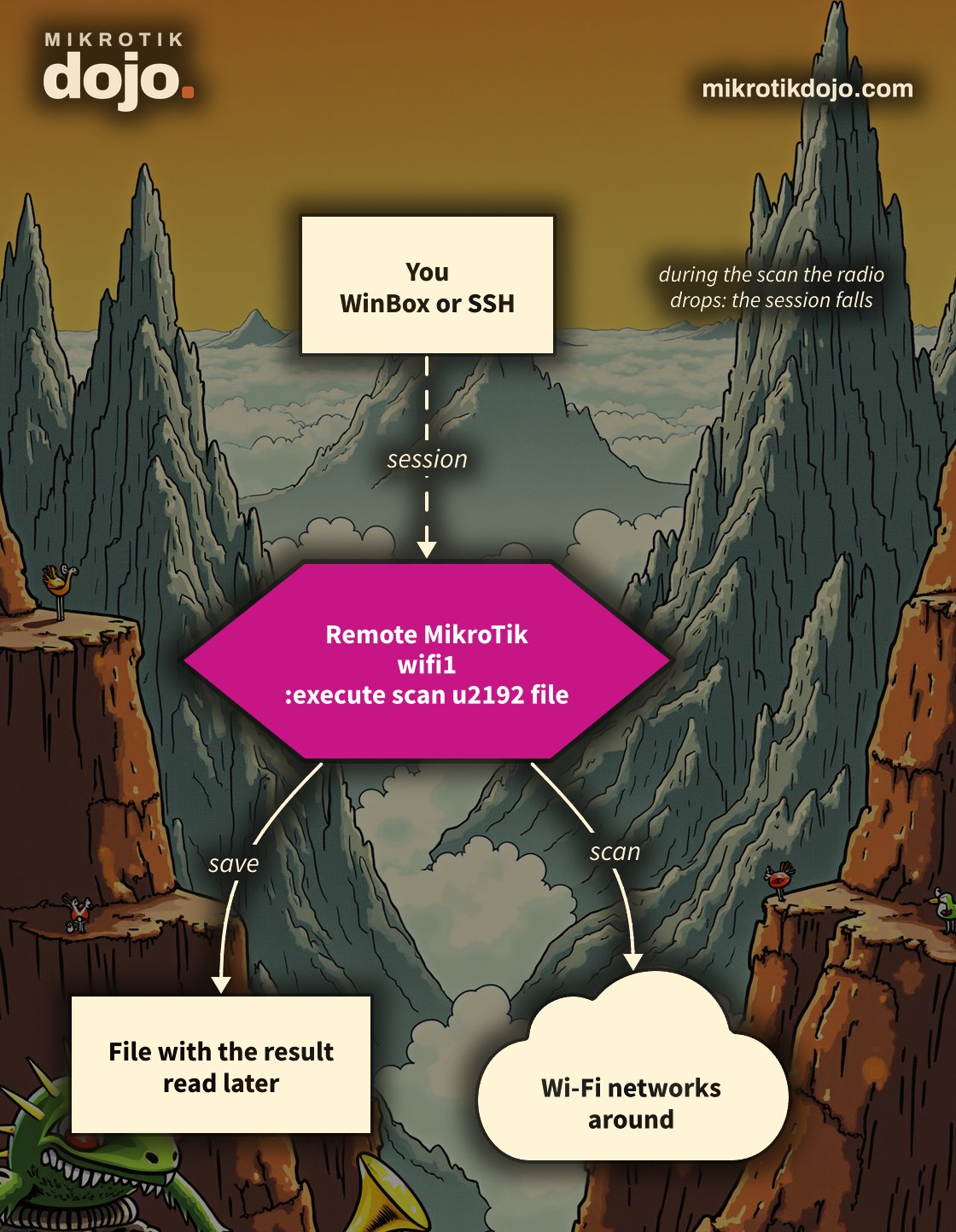
During a scan the radio stops acting as access point or client and listens to the channels one by one. If the device is a CPE or a bridge you reach over the air, in those seconds the link drops: WinBox disconnects and the scan result goes with it. In practice you’re asking the router to look around while you plug its ears.
I checked it with a radio in station mode: as soon as the scan starts, the station disappears from the registration table and reconnects on its own only when the scan is done.
Back in 2016 I described a trick: launch the scan from the terminal with a short duration and hope WinBox reconnects in time to show the output. It worked, but with tight margins. In RouterOS 7 there’s a more robust way.
Step 1: which wireless package do I have?
The commands change depending on the installed package. Look at which menu exists:
/interface wifi print
/interface wireless print- wifi: the new package, for 802.11ax radios and some 802.11ac ones (steps 2–5);
- wireless: the historic package, for older 802.11a/b/g/n/ac radios (step 6).
Step 2: how do I launch a scan that survives the disconnection?
With :execute, which runs the command as a separate process, detached from your session. The command starts, the link drops, the scan finishes anyway and the result stays in a file.
:execute script="/interface wifi scan wifi1 duration=10s save-file=scan-remoto.csv"save-file saves the result in CSV format, with some extra information compared to what you see on screen, for example the noise floor. Replace wifi1 with the name of your radio.
After about twenty seconds the link comes back up and you can reconnect.
Step 3: how do I read the result?
The file is in the router’s memory:
/file print where name~"scan-remoto"
:put [/file get scan-remoto.csv contents]
Or you download it from WinBox’s Files menu and open it with a spreadsheet. This is the result of a lab test (I changed the network names and MAC addresses myself):
Wireless Scan Results
Device identity: MikroTik
Interface: wifi1
Time: 2026-10-08 17:01:27
ADDRESS,SSID,CHANNEL,SECURITY,SIGNAL,NOISE-FLOOR,LAST-SEEN-[s],
02:00:00:00:00:0A,RETE-A,5200/ax/eCee,WPA2-PSK/WPA3-PSK,-41,0,9.38,
02:00:00:00:00:0B,RETE-B,5200/ax/eCee,WPA-PSK,-41,0,9.38,
Step 4: why isn’t save-file enough?
You’d think save-file alone would be enough, without :execute. I tried it: I launched the scan from an SSH session and closed it after four seconds, like when the link drops. The file was there, but it held only the header, without a single network. The scan dies together with the session that launched it.
With :execute, instead, the session closes right away and the scan keeps going on its own to the end. That’s the whole difference.
Step 5: how do I see how busy a channel is?
With the same trick you launch the frequency-scan, which for each channel measures how many networks there are, the load, and the noise. That’s what you need to choose where to move a link:
:execute script="/interface wifi frequency-scan wifi1 duration=10s" file=freq-remoto.txt
:put [/file get freq-remoto.txt contents]
Here file= is the :execute parameter: it saves the command’s output to the file, just as you’d see it on screen. A piece of what I got:
   CHANNEL  NETWORKS  LOAD  NF   MAX-SIGNAL  MIN-SIGNAL
 S    5180            8%    -99
P     5200         3  7%    -98  -41         -42
      5560            23%   -95
      5620            21%   -96
A channel with few networks but a high load, like 5560 above, is crowded all the same: someone’s transmitting and not announcing themselves. All the scan and frequency-scan parameters are in the MikroTik manual: WiFi.
Step 6: and with the wireless package?
Here the MikroTik manual points to exactly the right path for remote devices: a single-round scan with the result saved to a file. The router drops the link, goes around the channels, saves, and reconnects on its own.
/interface wireless scan wlan1 rounds=1 save-file=scan-remotoThe wireless package also has the background scan, which doesn’t drop the link. It works only with the 802.11 protocol (not NV2), with the interface active: an access point on a fixed channel, or a station that’s already connected.
/interface wireless scan wlan1 background=yesFor channel occupancy there’s the frequency monitor, again through :execute:
:execute script="/interface wireless frequency-monitor wlan1 duration=10" file=freq-remoto.txtConditions and limits of the background scan are in the MikroTik manual: Wireless Interface.
Step 7: how do I avoid getting locked out?
Three precautions before launching any scan on a remote device:
- Safe Mode: in WinBox or in the terminal (Ctrl+X). The scan doesn’t change the configuration, but if in the same session you touch something else and the link doesn’t come back, the router undoes the changes on its own;
- short duration: 5–10 seconds are enough to see the nearby networks. The longer the scan lasts, the longer the outage;
- one at a time: if you launch a second scan while the first is still running, RouterOS replies
other tool runningand the second file stays empty. It happened to me in the lab.
If the device is an access point with clients connected, remember that during the scan they lose the connection too: better do it at a quiet time. And if the device was just installed, before production follow the Basic hardening of a MikroTik router.
Tested in the lab on a routerboard with 802.11ax Wi-Fi running RouterOS 7.24.5 (stable) and the wifi package: scan and frequency-scan with :execute, save-file with the session interrupted halfway, a radio in station mode disconnected and reconnected during the scan. The wireless-package commands (step 6) come from the MikroTik documentation: that package isn’t on that device.
Frequently asked questions
Why do I lose the connection to the MikroTik during a wireless scan?
During the scan the radio listens to the channels one by one and stops serving the link: if you reach the device through that very radio, the link drops for the whole duration of the scan and comes back on its own at the end.
How do I save the result of a scan to a file?
With the wifi package: :execute script="/interface wifi scan wifi1 duration=10s save-file=nome.csv". With the wireless package: /interface wireless scan wlan1 rounds=1 save-file=nome. You read the file with /file get or download it from WinBox.
Why does the scan file hold only the header?
Because the session that had launched the scan closed before the end, and the scan stopped with it. Launching it with :execute, the scan runs detached from the session and goes all the way through.
Can you run a scan without dropping the link?
With the wireless package yes, with background=yes, if the link uses the 802.11 protocol and the interface is active. With the wifi package, the scan and the frequency-scan disconnect the clients, or the station from its access point.
How long should the scan last on a remote device?
As little as possible: 5–10 seconds are enough to see the nearby networks, and for all that time the device and its clients stay disconnected.
This howto brings up to RouterOS 7 a 2016 article from my old blog wirelessguru.it, now offline.