
When is it worth resetting a MikroTik?
When you unbox a device to configure from scratch, before loading a complete configuration script, and, above all, when you inherit a router whose history no one remembers. A configuration layered over the years always hides some forgotten rule, usually the one that costs you an afternoon. Starting clean costs less than doing archaeology.
The path in short: backup, reset, access to the empty router, protection before putting it on the network.
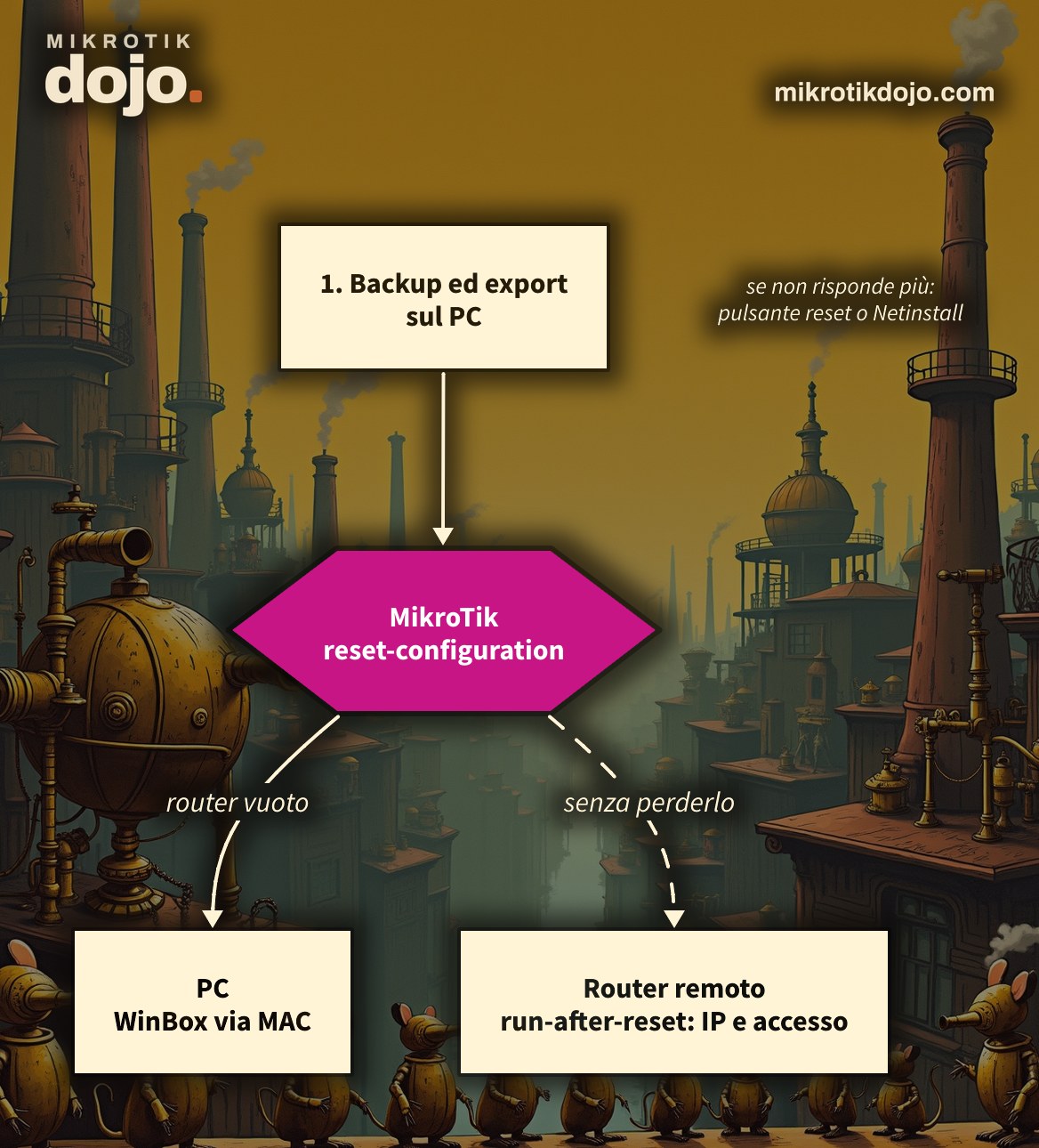
Step 1: how do I save the configuration before the reset?
With two files, because they serve different purposes:
- the binary backup (
.backup): restores everything, but on the same device or an identical one; - the textual export (
.rsc): can be read with an editor and reused in pieces, even on a different model.
/system backup save name=prima-del-reset password=una-password-robusta
/export file=prima-del-reset
Two details that make a difference in RouterOS 7:
- without
password=the backup is not encrypted: whoever has the file has your configuration, passwords included; - the export does not contain passwords and keys. If you need those too, add
show-sensitive(/export show-sensitive file=prima-del-reset) and treat the file as a password.
Then download the two files from the Files menu in WinBox to your PC. On models that have the flash folder, what is outside flash lives in RAM and disappears on reboot: the backup left there will not be found.
Step 2: how do I reset the router from RouterOS 7?
To start completely empty, without the factory configuration:
/system reset-configuration no-defaults=yes skip-backup=yesRouterOS asks for confirmation (Dangerous! Reset anyway? [y/N]): answer y and the router restarts. The same thing can be done from WinBox in System → Reset Configuration. All options of the command are in the MikroTik manual: Configuration Reset.
no-defaults=yes: the router restarts without addresses, DHCP, NAT and firewall;skip-backup=yes: no automatic backup before the reset (you already did it in step 1).
Without no-defaults=yes the router instead returns to the factory configuration of the model: for an hAP this means LAN bridge, DHCP server, NAT and basic firewall. Convenient at home, almost never what you want in a professional installation.
After the reset the user is admin, with an empty password or, on recent models, with the password printed on the device label.
⚠️ Warning: a router restarted with no-defaults=yes has no firewall and has all management services open. On the bench it is fine, but before putting it on the network, even just in LAN, follow the Basic Hardening of a MikroTik router.
And if I want to keep the users?
/system reset-configuration no-defaults=yes skip-backup=yes keep-users=yeskeep-users=yes preserves users and passwords and, I have tested it, also the SSH keys: after the reset you enter with the same key as before. Useful when you manage the router only via SSH with a key.
Step 3: how do I reset a remote router without losing it?
This is the delicate case: a device on a tower or at another site, reachable only over the network. If you reset it to factory defaults, it loses its IP address, and at that point the only way to see it again is to climb the tower. The solution is run-after-reset: immediately after the reset, the router runs a script that restores at least basic connectivity.
First, write the script and upload it to the router, either from WinBox (drag the file into the Files window) or via SCP. A minimal example, using the addresses from my lab (WAN 10.6.0.20/12, gateway and DNS 10.0.0.1):
⚠️ Warning: adapt the IP address, gateway, and DNS to the network where your router is located; otherwise, it will not be reachable after the reset.
:delay 30s
/ip address add address=10.6.0.20/12 interface=ether1 comment="WAN"
/ip route add dst-address=0.0.0.0/0 gateway=10.0.0.1
/ip dns set servers=10.0.0.1
/user set admin password="cambiami-subito"
/ip service set telnet,ftp,www,api disabled=yes
Before saving the script, check the IP address using the Dojo IP calculator: a subnet mask error here means an unreachable router after the reset.
What each line does:
:delay 30sgives the interfaces time to appear (on models with many ports, or with SFP and LTE modules, they take longer than expected): without this, the script may start whenether1does not exist yet and fail silently;- the IP address, default route, and DNS give the router the path back to you;
- the password prevents the router from remaining on the network with
adminand no password; - the last line disables all clear-text management services (telnet, FTP, WebFig over HTTP, API) in one go.
Then the actual reset:
/system reset-configuration no-defaults=yes skip-backup=yes run-after-reset=base.rscOn models with the flash folder, place the script inside it, and the path becomes run-after-reset=flash/base.rsc. The script must finish within 2 minutes; otherwise, RouterOS interrupts it, and you will find runtime limit exceeded in the log.
⚠️ Warning: before doing this on a remote router, test the script on an identical device on your bench. A typo in a remote script costs you kilometers.
Step 4: how do I reconnect to the empty router?
If you used run-after-reset, the router returns to the IP address you assigned in the script. If it restarted empty instead, it has no IP: open WinBox, go to the Neighbors tab, click on the router’s MAC address, and log in with admin. This works only if your PC is connected to the same network segment as the router, with no router in between.
A quick check from the terminal to verify that the reset went as intended:
/ip address print
/ip service print where disabled
/user print
Step 5: what if the router no longer responds?
Then you resort to the reset button. The sequence, while holding the button down as you power on the device:
- release when the LED (usually the USR one) starts blinking: the router restarts with factory default configuration;
- if you keep holding it for about 5 more seconds, until the LED stays solid: the router restarts in CAPs mode, ready for a CAPsMAN controller;
- if you keep holding it until the LED turns off: the router enters Netinstall mode and looks for a Netinstall server on the network.
The button does not ask for confirmation: be careful how long you hold it down.
The last resort is Netinstall: it reinstalls RouterOS from scratch from a PC connected over the network. Use it when the router no longer boots, when you have lost the password on a device without a backup, or to cleanly revert to a previous version.
Step 6: what do I do before putting it back on the network?
A freshly reset router is a blank sheet, and a blank sheet connected to the internet won’t last long. Before production:
- follow the Basic hardening of a MikroTik router: a user other than
admin, limited services, firewall towards the internet; - if you saved the export in step 1, restore only the parts you need, not the entire file: this is a good time to leave behind forgotten rules.
Tested in the lab on PNETLab with CHR RouterOS 7.24.5 (stable): backup and export, reset with no-defaults, keep-users and run-after-reset. The reset button sequence cannot be tested on a CHR: it comes from the MikroTik documentation.
Frequently asked questions
What is the difference between no-defaults=yes and a normal reset?
With no-defaults=yes the MikroTik restarts with no configuration at all; with a normal reset it restarts with the factory configuration of the model, which usually includes LAN bridge, DHCP server, NAT and basic firewall.
What is the password after the reset?
The user is admin. On older models the password is empty; on recent ones it is the password printed on the device label. With keep-users=yes the previous users and passwords are retained instead.
Does keep-users=yes also preserve SSH keys?
Yes: I tested it on RouterOS 7.24.5, after the reset with keep-users=yes you can log in with the same SSH key as before.
After the reset I no longer see the router on the network, what do I do?
With WinBox you can connect via MAC address from the Neighbors tab: this works even when the router has no IP address, provided the PC is on the same network segment.
Does the export contain passwords?
No, in RouterOS 7 the export hides passwords and keys. To include them, use /export show-sensitive, and the file must be stored as securely as a password.
Can a .backup file be loaded on a different model?
It is not recommended: the .backup file contains hardware-related data, such as MAC addresses. To move a configuration to a different model, use the text export (/export), adapting it manually.
Where do I save the script for run-after-reset?
On models that have the flash folder, save it there, because everything outside is in RAM and is lost on reboot; the path becomes run-after-reset=flash/base.rsc. On others, just upload it to the file list.
This howto updates a 2015 article on my old blog wirelessguru.it, now offline, to RouterOS 7.