
What is the problem with remote scanning?
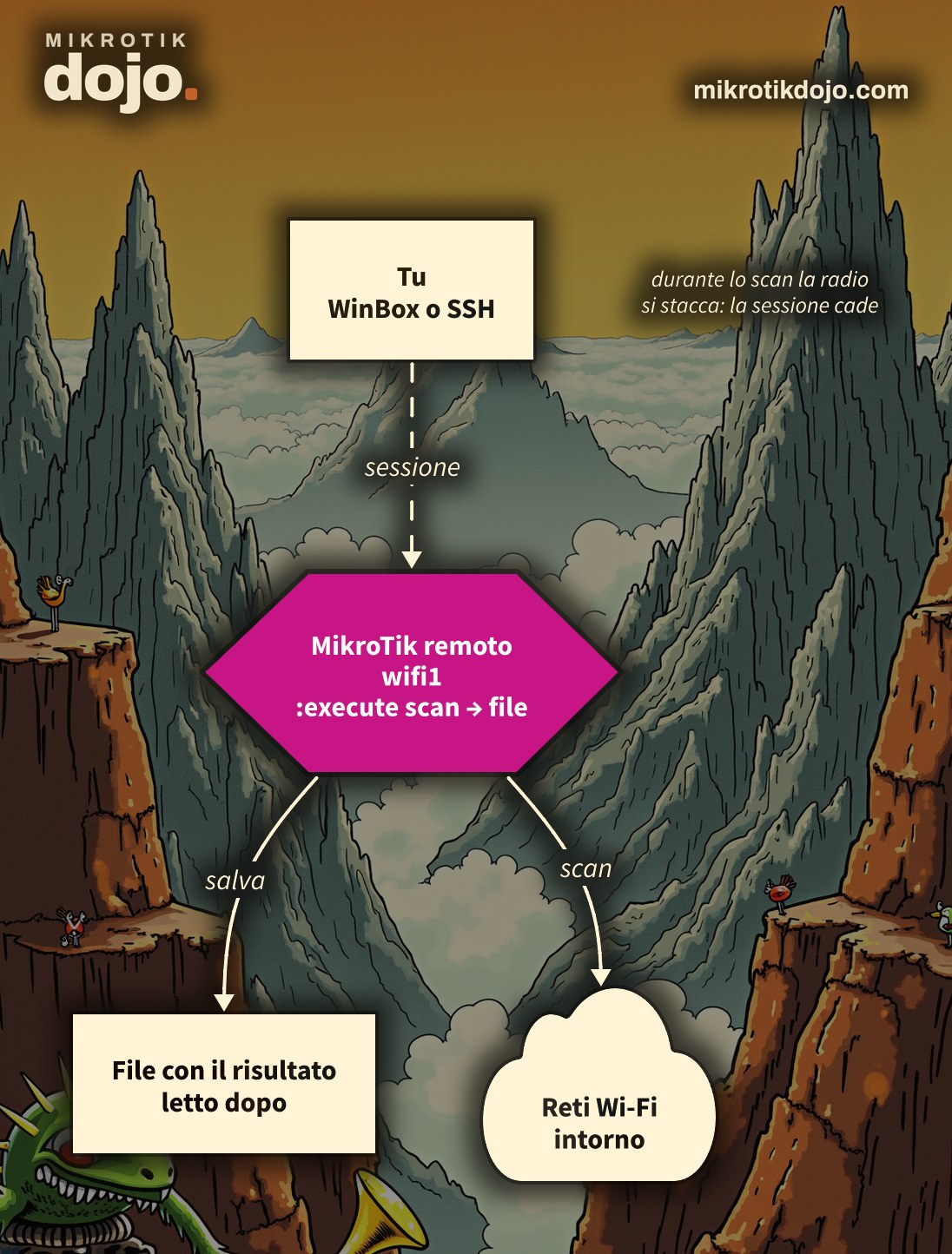
During a scan, the radio stops acting as an access point or client and listens to channels one by one. If the device is a CPE or a bridge that you reach via that very radio link, the link drops for those few seconds: WinBox disconnects and the scan result is lost with it. In practice, you are asking the router to look around while you are blocking its ears.
I verified this with a radio in station mode: as soon as the scan starts, the station disappears from the registration table and reconnects on its own only when the scan is finished.
In 2016, I described a trick: launching the scan from the terminal with a short duration and hoping that WinBox would reconnect in time to display the output. It worked, but with narrow margins. In RouterOS 7, there is a more robust way.
Step 1: which wireless package do I have?
The commands change depending on the installed package. Check which menu exists:
/interface wifi print
/interface wireless print- wifi: the new package, for 802.11ax radios and some 802.11ac (steps 2–5);
- wireless: the legacy package, for older 802.11a/b/g/n/ac radios (step 6).
Step 2: how do I launch a scan that survives disconnection?
Using :execute, which runs the command as a separate process, detached from your session. The command starts, the link drops, the scan finishes anyway, and the result remains in a file.
:execute script="/interface wifi scan wifi1 duration=10s save-file=scan-remoto.csv"save-file saves the result in CSV format, with a bit more information than what you see on screen, for example the background noise. Replace wifi1 with the name of your radio.
After about twenty seconds, the link comes back up and you can reconnect.
Step 3: how do I read the result?
The file is in the router’s memory:
/file print where name~"scan-remoto"
:put [/file get scan-remoto.csv contents]
Or you can download it from the Files menu in WinBox and open it with a spreadsheet. This is the result of a lab test (I changed the network names and MAC addresses):
Wireless Scan Results
Device identity: MikroTik
Interface: wifi1
Time: 2026-10-08 17:01:27
ADDRESS,SSID,CHANNEL,SECURITY,SIGNAL,NOISE-FLOOR,LAST-SEEN-[s],
02:00:00:00:00:0A,RETE-A,5200/ax/eCee,WPA2-PSK/WPA3-PSK,-41,0,9.38,
02:00:00:00:00:0B,RETE-B,5200/ax/eCee,WPA-PSK,-41,0,9.38,
Step 4: why is save-file not enough?
It would seem that save-file alone is sufficient, without :execute. I tried it: I launched the scan from an SSH session and closed it after four seconds, as happens when the link drops. The file was there, but it contained only the header, without even one network. The scan dies together with the session that launched it.
With :execute, however, the session closes immediately and the scan continues on its own until the end. That is the whole difference.
Step 5: how do I see how busy a channel is?
Using the same trick, you launch frequency-scan, which for each channel measures how many networks are present, the load, and the noise. This is what you need to choose where to move a link:
:execute script="/interface wifi frequency-scan wifi1 duration=10s" file=freq-remoto.txt
:put [/file get freq-remoto.txt contents]
Here, file= is the parameter of :execute: it saves the command output to a file, exactly as you would see it on screen. A piece of what I obtained:
   CHANNEL  NETWORKS  LOAD  NF   MAX-SIGNAL  MIN-SIGNAL
 S    5180            8%    -99
P     5200         3  7%    -98  -41         -42
      5560            23%   -95
      5620            21%   -96
A channel with few networks but high load, like channel 5560 above, is still congested: someone is transmitting without identifying themselves. All scan and frequency-scan parameters are in the MikroTik manual: WiFi.
Step 6: and with the wireless package?
Here, the MikroTik manual points directly to the path for remote devices: a single-pass scan with the result saved to a file. The router drops the link, scans through the channels, saves the file, and reconnects on its own.
/interface wireless scan wlan1 rounds=1 save-file=scan-remotoThe wireless package also has background scan, which does not drop the link. It works only with the 802.11 protocol (not NV2) and requires an active interface: an access point on a fixed channel, or a station already connected.
/interface wireless scan wlan1 background=yesFor channel occupancy, there is the frequency monitor, always via :execute:
:execute script="/interface wireless frequency-monitor wlan1 duration=10" file=freq-remoto.txtThe conditions and limits of background scan are in the MikroTik manual: Wireless Interface.
Step 7: how do I avoid getting cut off?
Three precautions before launching any scan on a remote device:
- Safe Mode: in WinBox or in the terminal (Ctrl+X). The scan does not change the configuration, but if you touch anything else in the same session and the link does not return, the router rolls back the changes automatically;
- short duration: 5–10 seconds are enough to see nearby networks. The longer the scan, the longer the service interruption;
- one at a time: if you launch a second scan while the first is still running, RouterOS responds
other tool runningand the second file remains empty. It happened to me in the lab.
If the device is an access point with connected clients, remember that during the scan they too lose their connection: it is better to do it during a quiet time slot. And if the device was just installed, before going into production follow the Basic Hardening of a MikroTik router.
Tested in the lab on a routerboard with Wi-Fi 802.11ax running RouterOS 7.24.5 (stable) and the wifi package: scan and frequency-scan with :execute, save-file with the session interrupted halfway, radio in station mode disconnected and reconnected during the scan. The wireless package commands (step 6) come from the MikroTik documentation: that package is not present on that device.
Frequently asked questions
Why do I lose the connection with the MikroTik during a wireless scan?
During the scan, the radio listens to channels one by one and stops serving the connection: if you reach the device through that radio, the link drops for the entire duration of the scan and returns on its own at the end.
How do I save the scan result to a file?
With the wifi package: :execute script="/interface wifi scan wifi1 duration=10s save-file=nome.csv". With the wireless package: /interface wireless scan wlan1 rounds=1 save-file=nome. The file can be read with /file get or downloaded from WinBox.
Why does the scan file contain only the header?
Because the session that launched the scan closed before it finished, and the scan stopped with it. Launching it with :execute allows the scan to run detached from the session and complete fully.
Can I perform a scan without dropping the link?
With the wireless package, yes; with background=yes, if the link uses the 802.11 protocol and the interface is active. With the wifi package, the scan and frequency-scan disconnect clients, or the station from its access point.
How long should a scan on a remote device take?
As little as possible: 5–10 seconds are enough to see nearby networks, and for that entire duration the device and its clients remain disconnected.
This howto updates a 2016 article from my old blog wirelessguru.it, now offline, to RouterOS 7.