
Why do you need to protect the LAN from guests?
Because a hotspot is, by definition, a network open to strangers. The ideal solution is a separate connection and infrastructure, or at least a dedicated VLAN up to the router. Often, though, the hotspot is “bolted on” to the office or the venue’s network: in that case the MikroTik’s firewall is the only thing separating an unknown smartphone from the customer’s business software.
This howto starts from a working hotspot. If you still need to create one, there’s the howto on how to create a WiFi hotspot with MikroTik and RouterOS 7.
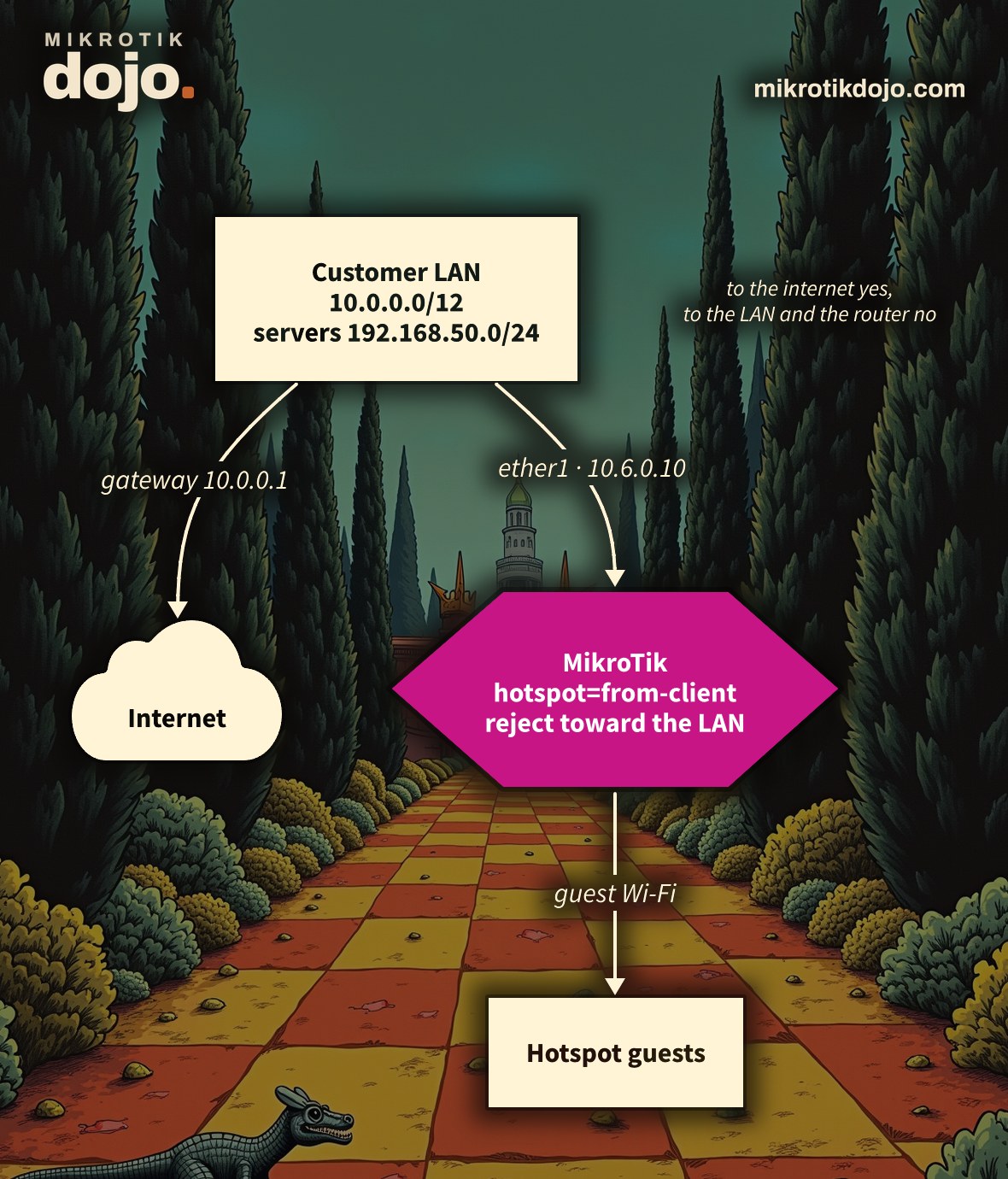
Step 1: which network are you protecting?
The typical case: the hotspot router’s WAN is connected to the customer’s network, and that’s exactly the network to protect. In my lab the WAN is 10.6.0.10/12, so the customer’s network is 10.0.0.0/12.
⚠️ Warning: replace 10.0.0.0/12 with the real network you need to protect, the one your hotspot’s WAN is connected to. If you’re not sure, the Dojo’s IP calculator works it out from the WAN address. You can also see it on the router here, in the NETWORK column:
/ip address print where interface=ether1Step 2: how do I block guest access to the LAN?
A single rule does the work:
/ip firewall filter add chain=forward hotspot=from-client \
    dst-address=10.0.0.0/12 action=reject reject-with=icmp-net-prohibited \
comment="Hotspot guests: no access to the LAN"hotspot=from-clientcatches the packets from the hotspot’s clients, authenticated or not;rejectblocks and answers with an error,dropblocks silently. For guests I preferreject: anyone who gets the address wrong figures it out right away, instead of waiting for a timeout.
The gateway 10.0.0.1 sits inside the blocked network, but browsing doesn’t break: traffic toward the internet is destined for the websites, not the gateway, and the rule only blocks the direct connections toward the customer’s network. DNS is safe too: the hotspot intercepts its clients’ DNS requests on its own and answers them itself.
The rule has to go before any rules that accept forwarded traffic. To move it to the top:
/ip firewall filter move [find comment="Hotspot guests: no access to the LAN"] destination=0Step 3: how do I check that the rule works?
From a device connected to the hotspot, after logging in, try a ping to a host on the LAN and one toward the internet. In the lab, with the customer’s network on 192.168.250.0/24, the result was this:
ping 192.168.250.1
From 192.168.88.1 icmp_seq=1 Destination Net Prohibited
From 192.168.88.1 icmp_seq=2 Destination Net Prohibited

ping 8.8.8.8
2 packets transmitted, 2 received, 0% packet loss
The LAN answers “Destination Net Prohibited”, the internet works. On the router the rule’s counters should climb:
/ip firewall filter print stats where comment~"Hotspot guests"Step 4: what if there’s more than one network to protect?
Better an address list instead of the address written into the rule: you add networks without touching the firewall. This rule replaces the one from step 2:
/ip firewall address-list add list=lan-protette address=10.0.0.0/12 comment="Customer network (WAN)"
/ip firewall address-list add list=lan-protette address=192.168.50.0/24 comment="Server network"
/ip firewall filter add chain=forward hotspot=from-client \
    dst-address-list=lan-protette action=reject reject-with=icmp-net-prohibited \
    comment="Hotspot guests: no access to the protected networks" place-before=0
place-before=0 puts it straight at the top, no need for the move.
Step 5: how do I protect the router itself?
The guests must not reach WinBox, SSH or the router’s other management services either:
/ip firewall filter add chain=input hotspot=from-client protocol=tcp \
    dst-port=21,22,23,8291,8728,8729 action=drop \
    comment="Hotspot guests: no router management"
What about ports 80 and 443, the WebFig ones? They don’t belong in the list: the hotspot already redirects all of its clients’ web traffic to its own internal ports (64872 through 64875), which serve the login page. The dynamic rules the hotspot creates are described in the MikroTik manual: HotSpot – Captive portal. In the lab, with this rule active, login worked and WinBox and SSH were unreachable from the guests.
Step 6: what if the WAN gets its address over DHCP?
Then the customer’s network can change, and a network written by hand into the address list sooner or later becomes wrong. Back in 2015 I solved this with a script launched by the scheduler; in RouterOS 7 there’s a cleaner way: the DHCP client script, which runs on its own every time the router gets or loses the lease.
/ip dhcp-client set [find interface=ether1] script={
    :if ($bound = 1) do={
        :local addr [/ip address get [find interface=$interface dynamic] address]
        :local net  [/ip address get [find interface=$interface dynamic] network]
        :local len  [:pick $addr ([:find $addr "/"] + 1) [:len $addr]]
        /ip firewall address-list remove [find list=lan-protette comment="dynamic WAN"]
        /ip firewall address-list add list=lan-protette address=($net . "/" . $len) comment="dynamic WAN"
        :log info ("hotspot: protected WAN network " . $net . "/" . $len)
    }
}
When the router gets its address ($bound = 1), the script works out the WAN’s network and puts it in the lan-protette address list, in place of the old one. The rule from step 4 always stays the same.
To test it without waiting: release the lease, the client immediately asks for a new one and the script runs.
/ip dhcp-client release [find interface=ether1]
/ip firewall address-list print where list=lan-protette
/log print where message~"protected WAN"
⚠️ Warning: the release drops the router’s connection for a few seconds. Don’t do it remotely through that very WAN.
Step 7: what do I check before putting it in production?
These rules protect the LAN from the guests, but the router has to be protected from the internet too. If you haven’t done it yet, follow the Basic hardening of a MikroTik router: a user other than admin, limited services, an input firewall toward the internet.
Tested in the lab on PNETLab with CHR RouterOS 7.24.5 (stable), a hotspot and an authenticated Linux client: blocking toward the LAN with an address and with an address list, browsing toward the internet, the input rule with login working, the DHCP client script.
Frequently asked questions
What does the hotspot=from-client matcher do?
The MikroTik firewall’s hotspot=from-client matcher selects the packets coming from the clients managed by the hotspot, regardless of IP address. You can combine it with auth to tell authenticated clients apart.
Is reject or drop better for blocking guests?
For the guest network reject is handier: anyone trying to reach the LAN gets an error right away instead of a timeout. drop doesn’t answer at all and is preferable toward the internet.
Does the rule go in the forward or the input chain?
In the forward chain you block the traffic that crosses the router toward the LAN; in the input chain you block the traffic aimed at the router itself, for example WinBox and SSH. For a hotspot you need both.
Does blocking port 80 in input break the login page?
No: the hotspot redirects the clients’ web traffic to its internal ports (64872–64875) before the input firewall. That’s why the rule only needs the management ports (21, 22, 23, 8291, 8728, 8729).
Does the DHCP client script work after a reboot too?
Yes: on reboot the DHCP client gets the lease again and the script runs, updating the address list with the current network.
This howto brings up to RouterOS 7 a 2015 article from my old blog wirelessguru.it, now offline.