
What is a hotspot with a captive portal?
It’s an open WiFi network (no WPA2/WPA3 password) where every attempt to browse is redirected to a login page, the captive portal. Only after authenticating can the client reach the internet.
The principle has held from 2015 to today: the guest network has to live on a different subnet from the one the internet comes in on. You don’t build a hotspot as a transparent bridge: the router has to route and filter the clients’ traffic.
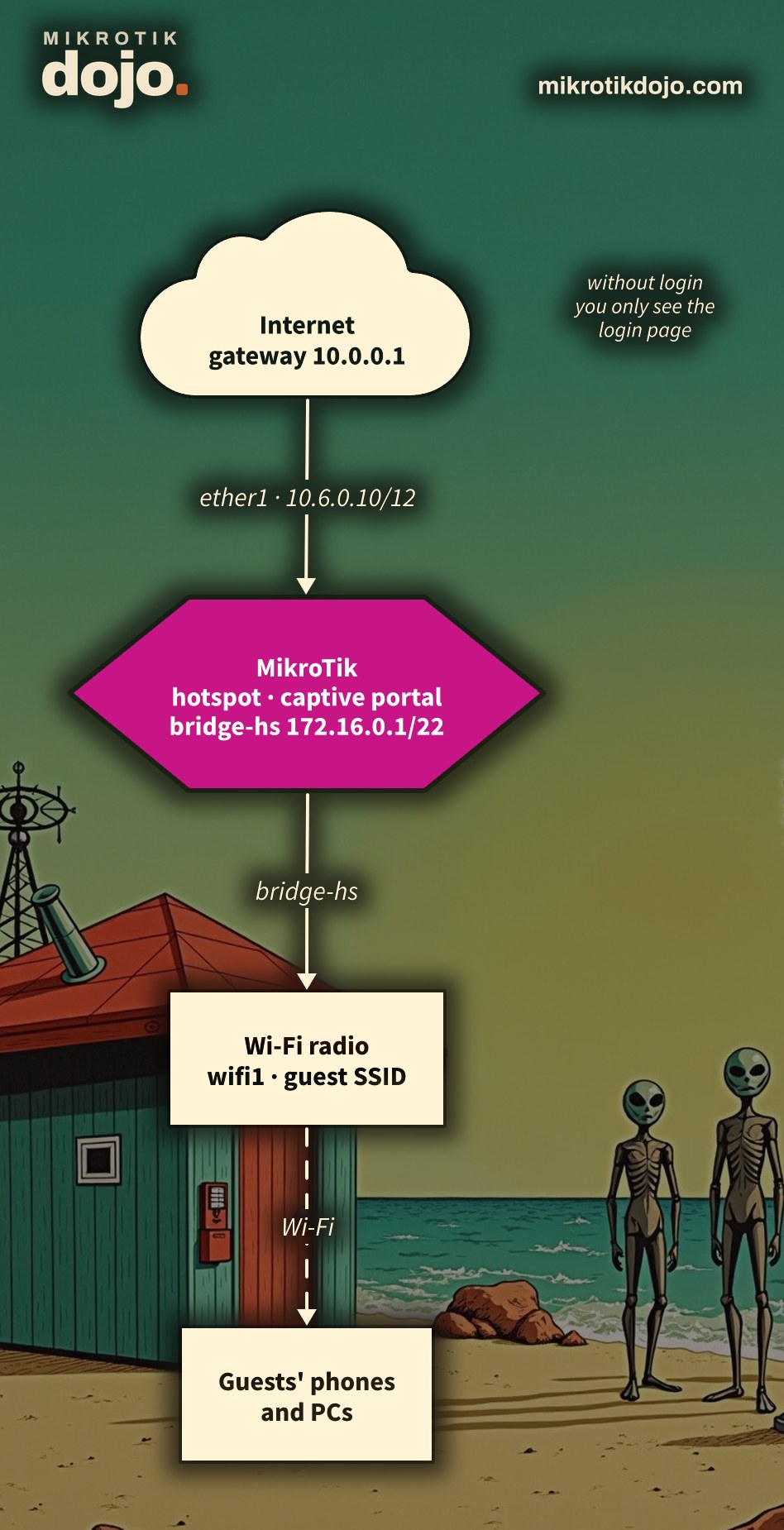
The layout for this example:
- WAN (toward the internet):
ether1, address10.6.0.10/12, gateway and DNS10.0.0.1; - guest network: bridge
bridge-hswith the radio, network172.16.0.0/22.
Step 1: how do I start from a clean configuration?
If the device has its factory configuration, it’s worth wiping it (there’s a dedicated howto on how to reset a MikroTik on RouterOS 7):
/system reset-configuration no-defaults=yes skip-backup=yes⚠️ Warning: we’re doing the reset for teaching purposes. A router wiped with no-defaults=yes has no firewall and leaves the admin user and the management services wide open: as-is it is not ready for production. Before you put it on the network, even just on the LAN, follow the Basic hardening of a MikroTik router.
After the reboot the router is empty, with no IP addresses. You connect to it with WinBox over the MAC address: in the Neighbors tab the router shows up, you click on its MAC and log in with the admin user.
Step 2: how do I configure the WAN?
The WAN is the interface that goes toward the internet: here it’s ether1, connected to the lab network.
⚠️ Warning: these addresses are the ones from my lab. Replace them with the ones from your network: the free address you can give the router, the gateway (the router or modem that leads to the internet) and the DNS.
Three commands: address, default route, DNS.
/ip address add address=10.6.0.10/12 interface=ether1 comment="WAN"
/ip route add dst-address=0.0.0.0/0 gateway=10.0.0.1 comment="Default to the internet"
/ip dns set servers=10.0.0.1
To check the network, broadcast and usable addresses of 10.6.0.10/12 there’s the Dojo’s IP calculator (it opens in a new tab).
Let’s make sure the router reaches the internet before going on: if this ping doesn’t answer, the hotspot won’t be able to work.
/ping 8.8.8.8 count=4
/ping mikrotik.com count=4
The first ping tests connectivity, the second also tests name resolution.
Step 3: how do I prepare the guest network?
We create a bridge and give it the guest network’s address. The bridge keeps the hotspot from being tied to a single radio: tomorrow we can add a second band, a port for an external access point or CAPsMAN without redoing anything.
/interface bridge add name=bridge-hs comment="Guest network"
/ip address add address=172.16.0.1/22 interface=bridge-hs comment="Guest network"
To check the network, broadcast and usable addresses of 172.16.0.1/22 there’s the Dojo’s IP calculator.
How big should the guest network be?
Size it for the installation. Private addresses are free, so better to have plenty, but with some judgment. Three things to consider:
- devices per person: today everyone carries a smartphone, often a tablet or a laptop, sometimes a watch. Counting two or three devices per person is realistic;
- lease duration: a device that leaves keeps its address occupied until the lease expires. With leases of an hour or more, the “occupied” addresses are far more than the devices present at that moment;
- a full DHCP pool is unforgiving: if the pool runs out, new arrivals don’t get an address. To the guest the hotspot “doesn’t work”, and it makes no difference whether it’s a configuration error or an exhausted pool.
An example: a hotel with 50 rooms. Two guests per room, two or three devices each, plus staff and common areas: you easily reach 300 devices, on top of which you add those of guests who just left and are still on a lease. A /24 (253 usable addresses) is a bad idea; a /23 (510) or a /22 (1022) is the wise choice.
And a /16? The mask on its own doesn’t create noise: a /16 with 300 devices is as quiet as a /22 with 300 devices. Broadcast traffic (ARP, DHCP, device announcements) depends on how many devices are on the same segment, not on how big the subnet is; on WiFi it weighs more because broadcast and multicast go out over the air at the lowest speed. A huge network only becomes a problem if you actually put thousands of clients on the same segment: there it’s worth splitting into several networks or VLANs. For a hotel a /22 is more than enough and stays tidy.
To do the math without slipping up there’s the Dojo’s IP calculator: type in the address and mask and it gives you the host count, the first and last usable address and the RouterOS commands for the address and the pool.
Step 4: how do I configure the radio?
It depends on the package installed on the router. On recent models (hAP ax, cAP ax and the like) there’s the wifi package: we create an open network called “Guests” and add the radio to the bridge.
/interface wifi set [find default-name=wifi1] configuration.ssid="Guests" \
    configuration.mode=ap configuration.country=Italy security.authentication-types="" disabled=no
/interface bridge port add bridge=bridge-hs interface=wifi1
On models with the wireless package the syntax is the classic one:
/interface wireless set [find default-name=wlan1] ssid="Guests" mode=ap-bridge \
    band=2ghz-g/n country=italy disabled=no
/interface bridge port add bridge=bridge-hs interface=wlan1
The country (country) is not a detail: it decides which channels and which power levels the radio is allowed to use. Always set it, it’s what the MikroTik manual examples do too.
Not sure which package you have? Just look at which menu exists: /interface wifi print or /interface wireless print.
Step 5: how does the hotspot wizard work?
/ip hotspot setup creates the hotspot server, pool and DHCP server, profile, NAT and firewall rules all by itself. You answer the questions one at a time:
/ip hotspot setup
hotspot interface: bridge-hs
local address of network: 172.16.0.1/22
masquerade network: yes
address pool of network: 172.16.0.10-172.16.3.254
select certificate: none
ip address of smtp server: 0.0.0.0
dns servers: 10.0.0.1
dns name: login.guests.lan
name of local hotspot user: test
password for the user: test
What each answer means:
- hotspot interface: the guest bridge, not the radio;
- masquerade network:
yes, so the guests reach the internet with the WAN’s address; - address pool: the addresses to hand out to the guests (we leave the first ones free for any fixed devices);
- dns servers: the same DNS as the WAN (in my lab
10.0.0.1); - dns name: the name the guest will see in the address bar of the login page. Better a name that isn’t a real domain belonging to someone else.
The wizard assigns the names on its own: the hotspot server is called hotspot1, the DHCP server dhcp1 (or dhcp2, if a dhcp1 already exists) and the pool hs-pool- followed by a number. The meaning of each question is in the MikroTik manual: parameters of the HotSpot setup.
The wizard also creates the DHCP server. We can tune the lease duration to the place: for a hotel an hour is fine, for a bar with quick turnover 30 minutes is enough.
/ip dhcp-server print
/ip dhcp-server set [find interface=bridge-hs] lease-time=1h
Step 6: how do I check that it works?
We connect a smartphone to the “Guests” SSID: the login page has to show up. With the user test / test you can browse. From the router we check:
/ip hotspot active print
/ip hotspot host print
/ip dhcp-server lease print where server=dhcp1activeshows the authenticated users;hostalso shows the devices that are connected but not yet authenticated: it’s the first place to look if someone “doesn’t see the login page”;- the DHCP leases tell you how many addresses are in use and help you figure out whether the pool is sized well. The filter uses the name of the server the wizard created: check it with
/ip dhcp-server print.
Step 7: what do I fix after the test?
Four things to do right away:
- the basic hardening of the router (here’s the dedicated howto): a user other than
admin, limited services, a firewall toward the internet, management over VPN; - delete the
testuser and create the real users, or connect a RADIUS server; - protect the LAN from the hotspot clients with a dedicated firewall rule (there’s a separate howto: how to protect the LAN from WiFi clients);
- consider a certificate for the login page over HTTPS, if the users enter credentials.
/ip hotspot user remove [find name=test]
/ip hotspot user add name=mario password=a-real-password profile=default
Tested in the lab on PNETLab with a CHR running RouterOS 7.24.5 (stable) and a Linux client: WAN, guest bridge, the /ip hotspot setup wizard with these answers, redirect to the login page, DHCP and the verification commands. The radio configuration (step 4) can’t be tested on a CHR: it comes from the MikroTik documentation.
Frequently asked questions
Can I build a MikroTik hotspot in bridge with the LAN?
No. The MikroTik hotspot has to route the clients’ traffic, so you need a dedicated guest subnet, different from the one the network that leads to the internet is on.
How big should a hotspot subnet be?
It depends on the installation: you count two or three devices per person and keep in mind that leases stay occupied even after the device has left. For a 50-room hotel a /24 is tight, a /23 or a /22 is the right choice.
Does a big subnet like a /16 create more broadcast traffic?
No, the mask on its own doesn’t generate traffic: broadcast depends on how many devices are on the same segment. A huge network only becomes a problem if you actually put thousands of clients on it, and then it’s worth splitting it into several networks.
What values does the MikroTik DHCP server’s lease-time accept?
Tested in the lab on RouterOS 7 (CHR): the DHCP server accepts from 1s to 4294967295s (about 7101 weeks), so 30m, 1h or 1d all work fine. 0s and values beyond the maximum give “out of range”, while forever, infinite and none are not valid values. On a static lease, however, 0s is accepted and means “use the server’s lease-time”.
What’s the difference between the wifi package and the wireless package?
The wifi package is the new RouterOS 7 one for 802.11ax and some ac radios, with the /interface wifi menu; the wireless package is the classic one, with the /interface wireless menu. The hotspot works the same way with both.
Does the hotspot wizard also create the firewall rules?
Yes, /ip hotspot setup creates the dynamic NAT and firewall rules the captive portal needs. What it does not create are the rules to isolate the customer network from the guests: those have to be added by hand.
This howto brings up to RouterOS 7 a 2015 article from my old blog wirelessguru.it, now offline.