
Why do you need to protect the LAN from guests?
Because a hotspot is, by definition, a network open to strangers. The ideal solution is a separate connection and infrastructure, or at least a dedicated VLAN up to the router. However, the hotspot is often “attached” to the office or venue network: in that case the MikroTik firewall is the only thing separating an unknown smartphone from the customer’s management system.
This howto starts from an already working hotspot. If you still need to create one, there is a howto on how to create a WiFi hotspot with MikroTik and RouterOS 7.
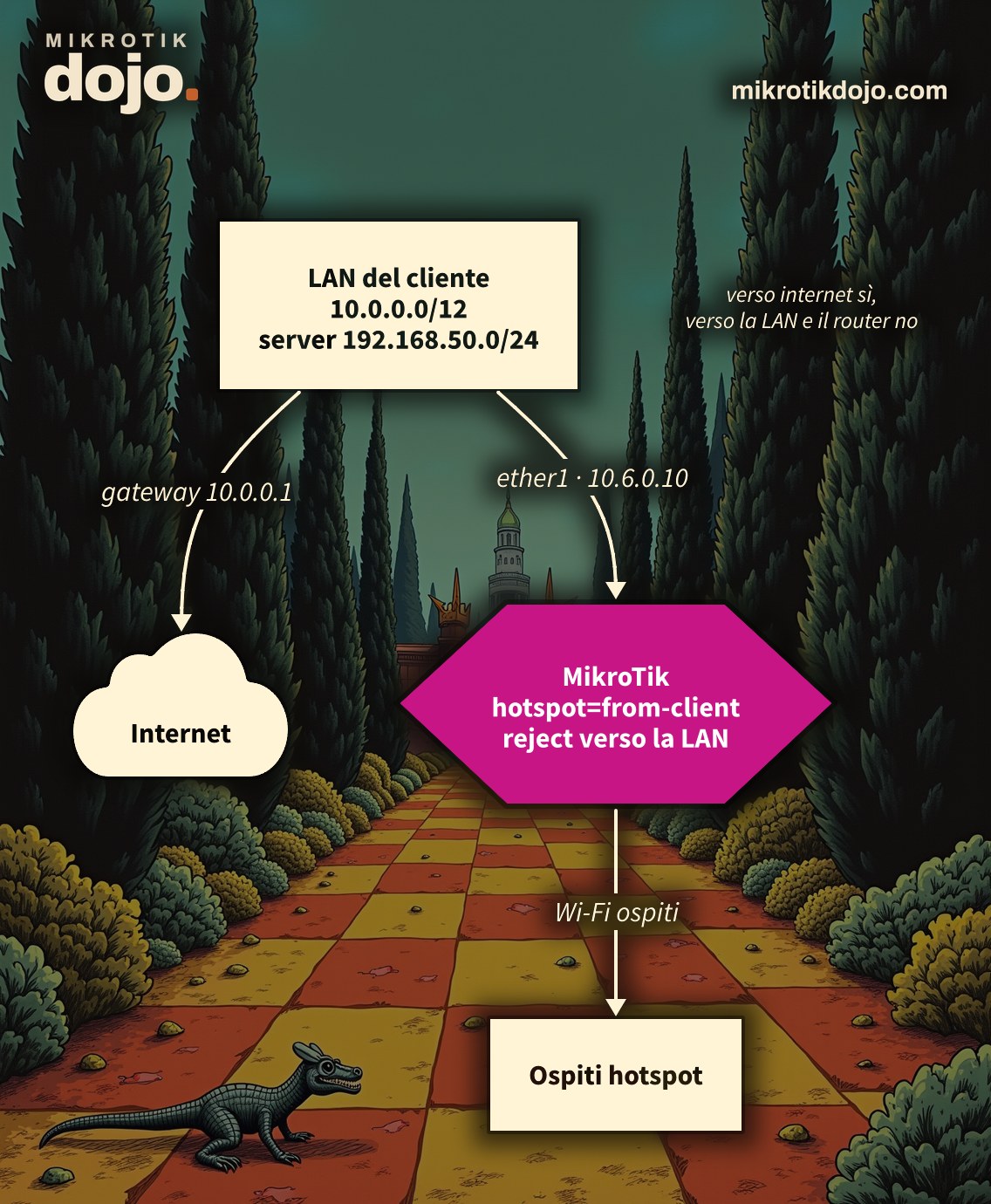
Step 1: which network needs protection?
The typical case: the WAN of the hotspot router is connected to the customer network, and that is exactly the network to protect. In my lab, the WAN is 10.6.0.10/12, so the customer network is 10.0.0.0/12.
⚠️ Warning: replace 10.0.0.0/12 with the actual network to protect, the one your hotspot WAN is connected to. If you are not sure, the Dojo IP calculator can derive it from the WAN address. You can also see it on the router here, in the NETWORK column:
/ip address print where interface=ether1Step 2: how do I block guest access to the LAN?
A single rule does the job:
/ip firewall filter add chain=forward hotspot=from-client \
    dst-address=10.0.0.0/12 action=reject reject-with=icmp-net-prohibited \
comment="Ospiti hotspot: niente accesso alla LAN"hotspot=from-clienttakes the packets from hotspot clients, authenticated or not;rejectblocks and responds with an error,dropblocks silently. For guests I preferreject: whoever enters the wrong address finds out immediately, instead of waiting for a timeout.
The gateway 10.0.0.1 is inside the blocked network, but browsing is not interrupted: traffic towards the internet has the websites as destination, not the gateway, and the rule only blocks direct connections towards the customer network. DNS is also safe: the hotspot intercepts only the DNS requests from its clients and responds itself.
The rule must be placed before any rules that accept traffic in forward. To move it to the top:
/ip firewall filter move [find comment="Ospiti hotspot: niente accesso alla LAN"] destination=0Step 3: how do I verify that the rule works?
From a device connected to the hotspot, after login, try a ping to a LAN host and one towards the internet. In the lab, with the customer network on 192.168.250.0/24, the result was this:
ping 192.168.250.1
From 192.168.88.1 icmp_seq=1 Destination Net Prohibited
From 192.168.88.1 icmp_seq=2 Destination Net Prohibited

ping 8.8.8.8
2 packets transmitted, 2 received, 0% packet loss
The LAN responds “Destination Net Prohibited”, the internet works. On the router, the rule counters must increase:
/ip firewall filter print stats where comment~"Ospiti hotspot"Step 4: what if there is more than one network to protect?
It is better to use an address list instead of the address written in the rule: add networks without touching the firewall. This rule replaces the one from step 2:
/ip firewall address-list add list=lan-protette address=10.0.0.0/12 comment="Rete del cliente (WAN)"
/ip firewall address-list add list=lan-protette address=192.168.50.0/24 comment="Rete server"
/ip firewall filter add chain=forward hotspot=from-client \
    dst-address-list=lan-protette action=reject reject-with=icmp-net-prohibited \
    comment="Ospiti hotspot: niente accesso alle reti protette" place-before=0
place-before=0 puts it directly at the top, without the need for move.
Step 5: how do I protect the router itself?
Guests must not reach even WinBox, SSH and the other router management services:
/ip firewall filter add chain=input hotspot=from-client protocol=tcp \
    dst-port=21,22,23,8291,8728,8729 action=drop \
    comment="Ospiti hotspot: niente gestione del router"
What about ports 80 and 443, the ones used by WebFig? They are not needed in the list: the hotspot already redirects all web traffic from its clients to its internal ports (64872 to 64875), which serve the login page. The dynamic rules created by the hotspot are described in the MikroTik manual: HotSpot – Captive portal. In the lab, with this rule active, the login worked and WinBox and SSH were unreachable from the guests.
Step 6: What if the WAN gets its address via DHCP?
In that case, the client’s network can change, and a network manually written in the address list will eventually become incorrect. In 2015, I solved this with a script launched by the scheduler; in RouterOS 7, there is a cleaner way: the DHCP client script, which runs automatically every time the router receives or loses a lease.
/ip dhcp-client set [find interface=ether1] script={
    :if ($bound = 1) do={
        :local addr [/ip address get [find interface=$interface dynamic] address]
        :local net  [/ip address get [find interface=$interface dynamic] network]
        :local len  [:pick $addr ([:find $addr "/"] + 1) [:len $addr]]
        /ip firewall address-list remove [find list=lan-protette comment="WAN dinamica"]
        /ip firewall address-list add list=lan-protette address=($net . "/" . $len) comment="WAN dinamica"
        :log info ("hotspot: rete WAN protetta " . $net . "/" . $len)
    }
}
When the router receives the address ($bound = 1), the script derives the WAN network and puts it in the address list lan-protette, replacing the old one. The rule from Step 4 remains the same.
To test it without waiting: release the lease, the client immediately requests a new one, and the script runs.
/ip dhcp-client release [find interface=ether1]
/ip firewall address-list print where list=lan-protette
/log print where message~"WAN protetta"
⚠️ Warning: releasing the lease causes the router connection to be lost for a few seconds. Do not do this remotely if you are connected through that specific WAN.
Step 7: What do I check before putting it into production?
These rules protect the LAN from guests, but the router must also be protected from the internet. If you have not done it yet, follow the Basic Hardening of a MikroTik router: a user different from admin, limited services, and an input firewall towards the internet.
Tested in the lab on PNETLab with CHR RouterOS 7.24.5 (stable), a hotspot, and an authenticated Linux client: blocking towards the LAN using both an address and an address list, browsing towards the internet, an input rule with a working login, and the DHCP client script.
Frequently asked questions
What does the matcher hotspot=from-client do?
The hotspot=from-client matcher in the MikroTik firewall selects packets arriving from clients managed by the hotspot, regardless of the IP address. It can be combined with auth to distinguish authenticated clients.
Is it better to use reject or drop to block guests?
For the guest network, reject is more convenient: anyone trying to reach the LAN receives an immediate error instead of a timeout. drop does not respond at all and is preferable towards the internet.
Should the rule be in the forward or input chain?
In the forward chain, you block traffic passing through the router towards the LAN; in the input chain, you block traffic directed to the router itself, for example WinBox and SSH. For a hotspot, you need both.
Does blocking port 80 in input break the login page?
No: the hotspot redirects the clients’ web traffic to its internal ports (64872–64875) before the input firewall. That is why the rule only needs the management ports (21, 22, 23, 8291, 8728, 8729).
Does the DHCP client script work after a reboot?
Yes: upon reboot, the DHCP client obtains the lease again and the script runs, updating the address list with the current network.
This howto updates a 2015 article from my old blog wirelessguru.it, which is now offline, to RouterOS 7.