
What is Netwatch for?
Netwatch is the sentinel of RouterOS: it periodically pings an address and, when that address stops responding or starts responding again, it runs a script. The script can do whatever you want; the most useful action is to notify you. It is the difference between “the customer calls you at 9 because the warehouse camera has been off since last night” and “at 23:14 you receive a message on your phone: warehouse camera not responding”.
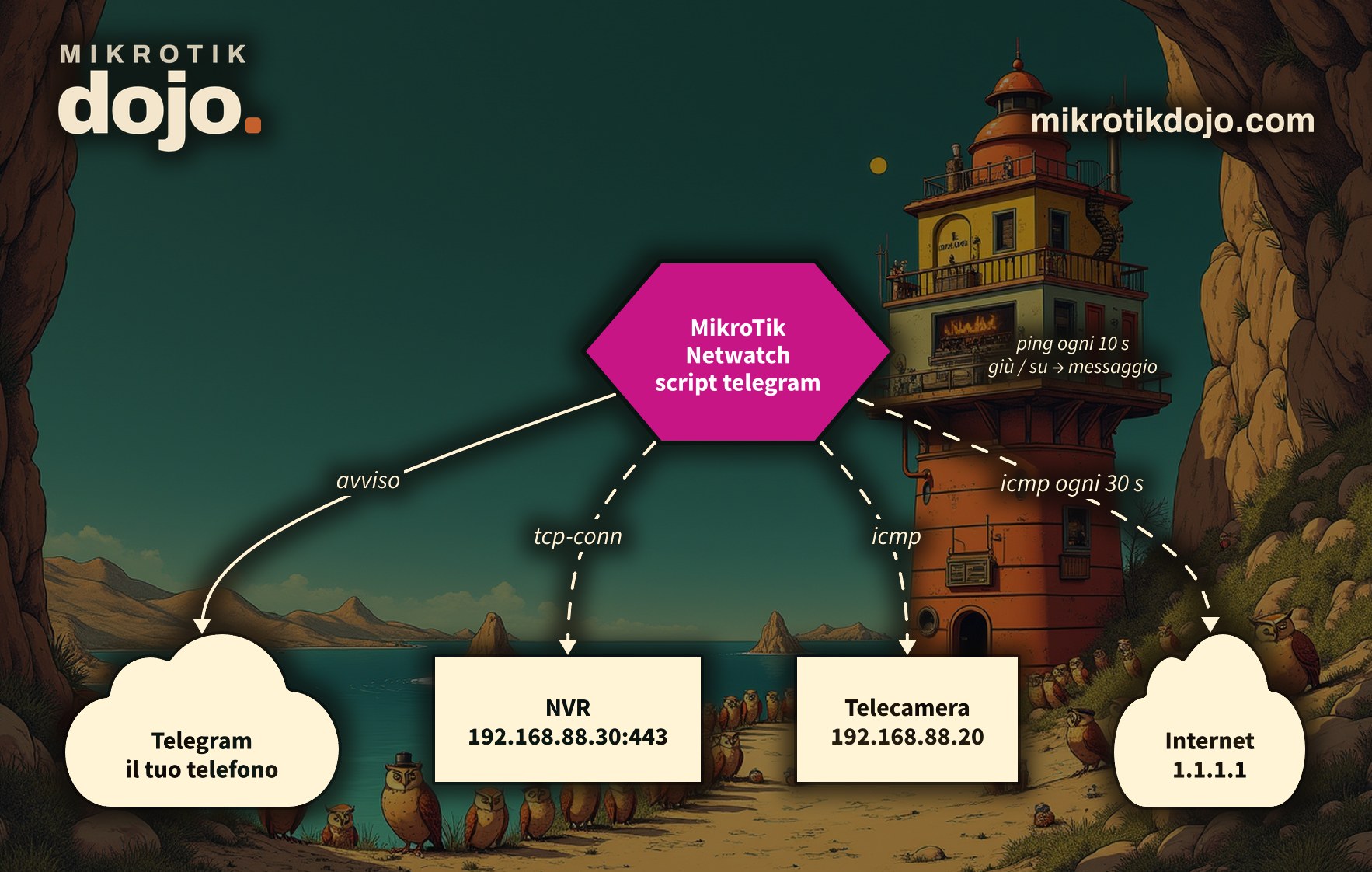
In this howto, Netwatch monitors two things: a network device (a camera) and the internet line. The notifications are sent to Telegram.
Step 1: Can the router already write to Telegram?
The notifications use the telegram script from the howto on connecting MikroTik to Telegram. If you have not done this yet, start there: it takes only a few minutes. Check that it works:
{
:local telegram [:parse [/system script get telegram source]]
$telegram "prova prima di Netwatch"
}
If the message arrives on your phone, you are ready.
Step 2: How do I monitor a device?
One Netwatch per device, with two scripts: one for when it goes down and one for when it comes back up. In the example, the entrance camera is 192.168.88.20: put the address of your device.
/tool netwatch add name=telecamera-ingresso host=192.168.88.20 type=icmp interval=10s \
    ignore-initial-up=yes \
    down-script={
        :local telegram [:parse [/system script get telegram source]]
        $telegram ("ATTENZIONE: " . $name . " (" . $host . ") non risponde")
    } \
    up-script={
        :local telegram [:parse [/system script get telegram source]]
        $telegram ("OK: " . $name . " (" . $host . ") di nuovo raggiungibile")
}type=icmp: every 10 seconds (interval), it sends a burst of pings and decides whether the device is up or down;- in the
$nameand$hostscripts, the Netwatch name and the monitored address are already set. This way, the same script works for all devices; ignore-initial-up=yesI explain this in Step 5.
To check the device’s IP address and network, use the Dojo IP calculator.
Step 3: How do I test it?
Unplug the device’s cable, or disable the router port it is connected to, and wait about twenty seconds. In the lab, unplugging and replugging the port produced this in the log:
netwatch,info event down [ telecamera-ingresso ]
fetch,info Download from api.telegram.org FINISHED
netwatch,info event up [ telecamera-ingresso ]
fetch,info Download from api.telegram.org FINISHED
And two messages arrived on the phone, “WARNING: entrance-camera (…) not responding” and then “OK: … reachable again”. You can see the status of all sentinels like this:
/tool netwatch print
/log print where topics~"netwatch"
Step 4: How do I monitor the internet line?
Same Netwatch, but targeting an internet address that always responds to pings, for example 1.1.1.1:
/tool netwatch add name=internet host=1.1.1.1 type=icmp interval=30s \
    thr-avg=300ms thr-loss-percent=50 ignore-initial-up=yes \
    down-script={
        :local telegram [:parse [/system script get telegram source]]
        $telegram "ATTENZIONE: la linea internet non risponde"
    } \
    up-script={
        :local telegram [:parse [/system script get telegram source]]
        $telegram "OK: la linea internet è tornata"
    }
Here, the two thresholds matter:
thr-avg: if the average latency exceeds this value, Netwatch considers the line down. The default is 100 ms: on a 4G, satellite, or heavily loaded radio line, a working line might appear dead. With 300 ms, you are more tolerant;thr-loss-percent: the percentage of lost pings beyond which the line is considered down.
But how can it notify you if the line is down? The “down” message is sent when there is no internet, so it is lost. If you have a second line, the message goes out through that one; if you have only one, you will still receive the “OK” message when it comes back, and knowing that there was an interruption, and at what time, is valuable. Alternatively, in the “down” script, you can write to the log or send an email to an internal server.
Step 5: What happens after a reboot?
Two things to know, observed in the lab:
- after startup, Netwatch waits 5 minutes before starting (
startup-delay). During those minutes, all sentinels remain inunknownstate: this is normal, not a fault; - once the 5 minutes are up, each sentinel changes from “unknown” to “up” and, by default, runs the “up” script. With ten monitored devices, you receive ten “OK” messages on every reboot.
ignore-initial-up=yesskips that first “up”. The first “down”, however, remains: if a device does not respond after a reboot, you want to know.
To know when the router itself reboots, there is the scheduler in step 6 of the Telegram how-to.
Step 6: Can you monitor more than a ping?
Yes. Besides icmp, Netwatch can perform other types of checks:
tcp-conn: opens a TCP connection on a port, for example port 554 of a camera or port 443 of a server. A ping may respond even when the service is dead;http-getandhttps-get: requests a web page and checks the response code;dns: queries a DNS server and checks that it responds.
/tool netwatch add name=nvr-web host=192.168.88.30 type=tcp-conn port=443 interval=30sThresholds and options for each type of check are in the MikroTik manual: Netwatch.
What do I check before putting it into production?
A router that monitors the network and sends messages must itself be protected. If you have not done it yet, follow the Basic Hardening of a MikroTik router. And really test each sentinel at least once, by unplugging the cable: an alert that has never been tested is an alert that will not arrive.
Tested in the lab on PNETLab with CHR RouterOS 7.24.5 (stable), a Linux client as the monitored device, and a real Telegram bot: “down” and “up” alerts received on the phone, internet line with custom thresholds, 5-minute wait after reboot and initial “up” message, ignore-initial-up. The tcp-conn type and other check types come from the MikroTik documentation.
Frequently asked questions
What is Netwatch in MikroTik?
It is a RouterOS tool that periodically checks an address (via ping, TCP connection, HTTP, or DNS) and runs a script when the address stops responding or becomes reachable again.
Why does Netwatch remain in unknown state after a reboot?
Because by default it waits 5 minutes from startup before beginning checks (startup-delay). After the 5 minutes, the sentinels change to “up” or “down”.
How do I avoid a message for every device on every reboot?
With ignore-initial-up=yes: Netwatch skips the “up” script on the first check after startup, but still runs the “down” script if a device does not respond.
Why does Netwatch say the line is down if internet is working?
Probably due to latency: with type=icmp the default threshold for average latency (thr-avg) is 100 ms, which is exceeded on 4G, satellite, or heavily loaded radio lines. Raise the threshold, for example to 300 ms.
Which variables can I use in Netwatch scripts?
Among others $name and $host, the name of the sentinel and the monitored address, plus the statistics of the last check. Those with a hyphen are written in quotes, for example $"done-tests".