
What is a hotspot with a captive portal?
It is an open WiFi network (without WPA2/WPA3 password) where every browsing attempt is redirected to a login page, the captive portal. Only after authentication can the client access the internet.
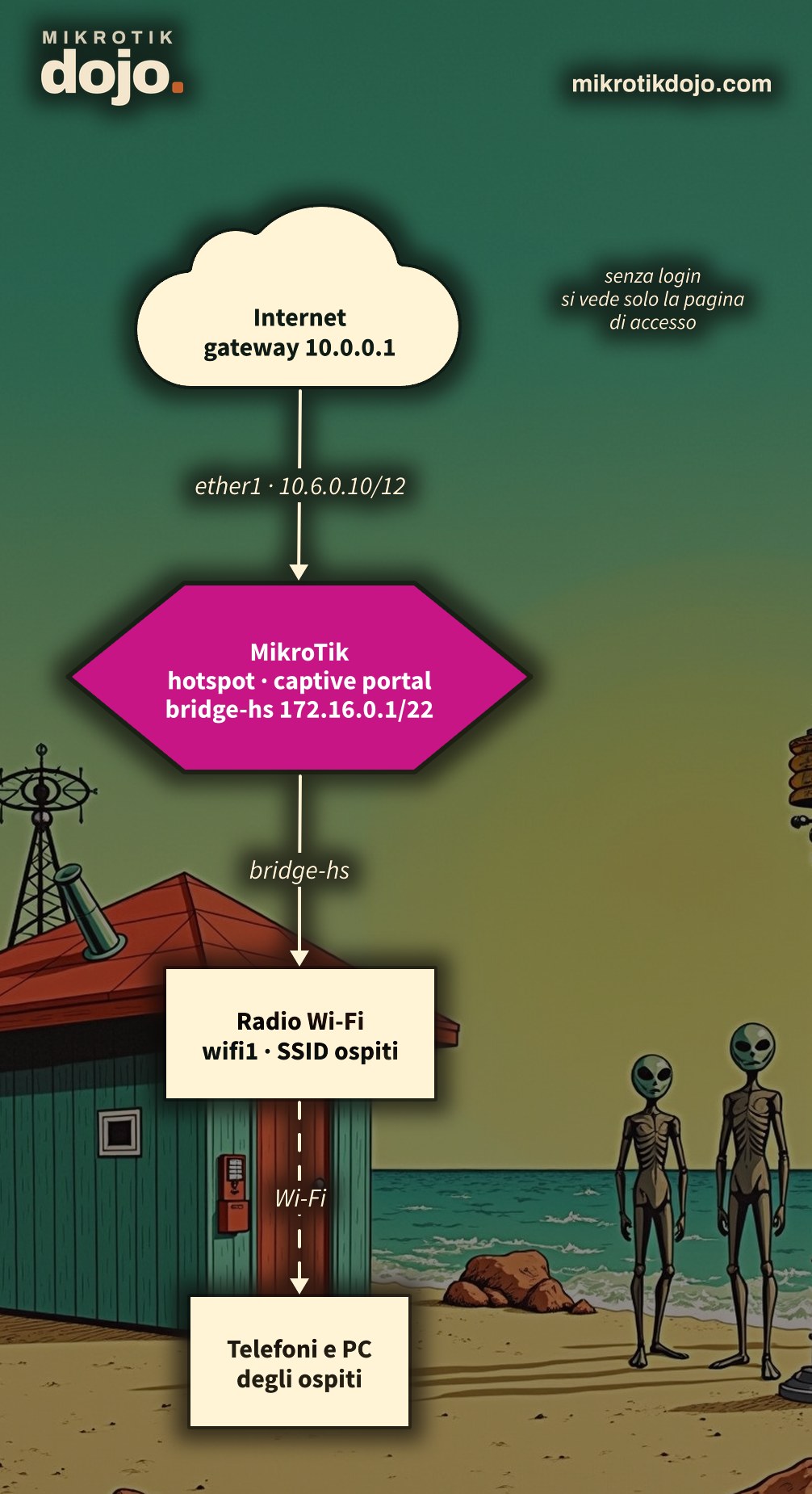
The principle that has been valid from 2015 to today: the guest network must be on a different subnet from the one where the internet connection arrives. A hotspot is not built on a transparent bridge: the router must route and filter client traffic.
The example schema:
- WAN (towards the internet):
ether1, address10.6.0.10/12, gateway and DNS10.0.0.1; - guest network: bridge
bridge-hswith the radio, network172.16.0.0/22.
Step 1: how do I start from a clean configuration?
If the device has the factory configuration, it is advisable to reset it (there is a dedicated how-to on how to reset a MikroTik with RouterOS 7):
/system reset-configuration no-defaults=yes skip-backup=yes⚠️ Warning: we perform the reset for educational purposes. A router reset with no-defaults=yes has no firewall and has the admin user and management services open: as it is, it is not installable in production. Before putting it on the network, even just on the LAN, follow the Basic Hardening of a MikroTik router.
After the reboot, the router is empty, without IP addresses. You connect with WinBox via MAC address: in the Neighbors tab, the router appears, you click on its MAC and log in with the admin user.
Step 2: how do I configure the WAN?
The WAN is the interface that goes towards the internet: here ether1, connected to the lab network.
⚠️ Warning: these addresses are those of my lab. Replace them with those of your network: the free address you can assign to the router, the gateway (the router or modem that leads to the internet) and the DNS.
Three commands: address, default route, DNS.
/ip address add address=10.6.0.10/12 interface=ether1 comment="WAN"
/ip route add dst-address=0.0.0.0/0 gateway=10.0.0.1 comment="Default verso internet"
/ip dns set servers=10.0.0.1
To check the network, broadcast, and usable addresses of 10.6.0.10/12, there is the Dojo IP calculator (opens in a new tab).
Let’s verify that the router can reach the internet before moving on: if this ping does not respond, the hotspot will not work.
/ping 8.8.8.8 count=4
/ping mikrotik.com count=4
The first ping tests connectivity, the second also tests name resolution.
Step 3: how do I prepare the guest network?
We create a bridge and assign it the guest network address. The bridge serves to not tie the hotspot to a single radio: tomorrow we can add a second band, a port for an external access point, or CAPsMAN without redoing anything.
/interface bridge add name=bridge-hs comment="Rete ospiti"
/ip address add address=172.16.0.1/22 interface=bridge-hs comment="Rete ospiti"
To check the network, broadcast, and usable addresses of 172.16.0.1/22, there is the Dojo IP calculator.
How large should the guest network be?
It must be sized according to the installation. Private addresses are free, so it is better to be generous, but with reason. Three things to consider:
- devices per person: today everyone carries a smartphone, often a tablet or laptop, sometimes a watch. Counting two or three devices per person is realistic;
- lease duration: a device that leaves keeps its address occupied until the lease expires. With leases of an hour or more, the number of “occupied” addresses is much higher than the number of devices actually present at that moment;
- a full DHCP pool is unforgiving: if the pool is exhausted, new arrivals do not receive an address. For the guest, the hotspot “does not work”; it makes no difference whether it is a configuration error or an exhausted pool.
An example: a hotel with 50 rooms. Two guests per room, two or three devices each, plus staff and common areas: you easily reach 300 devices, to which you must add those of guests who have just left but are still within their lease. A /24 (253 usable addresses) is not recommended; a /23 (510) or a /22 (1022) is the wise choice.
What about a /16? The mask alone does not create noise: a /16 with 300 devices is as quiet as a /22 with 300 devices. Broadcast traffic (ARP, DHCP, device announcements) depends on how many devices are in the same segment, not on how large the subnet is; in WiFi it weighs more because broadcast and multicast are transmitted at the lowest rate. A huge network becomes a problem only if you actually put thousands of clients in the same segment: in that case, it is better to split it into multiple networks or VLANs. For a hotel, a /22 is more than sufficient and remains orderly.
To do the math without mistakes, there is the Dojo IP calculator: enter the address and mask, and it gives you the number of hosts, the first and last usable addresses, and the RouterOS commands for the address and pool.
Step 4: how do I configure the radio?
It depends on the package installed on the router. On recent models (hAP ax, cAP ax, and similar), there is the wifi package: we create an open network called “Guests” and add the radio to the bridge.
/interface wifi set [find default-name=wifi1] configuration.ssid="Ospiti" \
    configuration.mode=ap configuration.country=Italy security.authentication-types="" disabled=no
/interface bridge port add bridge=bridge-hs interface=wifi1
On models with the wireless package, the syntax is the historical one:
/interface wireless set [find default-name=wlan1] ssid="Ospiti" mode=ap-bridge \
    band=2ghz-g/n country=italy disabled=no
/interface bridge port add bridge=bridge-hs interface=wlan1
The country (country) is not a detail: it determines which channels and which power levels the radio can use. Always set it; this is what the MikroTik manual examples do as well.
Do not know which package you have? Just look at which menu exists: /interface wifi print or /interface wireless print.
Step 5: how does the hotspot wizard work?
/ip hotspot setup automatically creates the hotspot server, pool, and DHCP server, profile, NAT rules, and firewall. You answer the questions one by one:
/ip hotspot setup
hotspot interface: bridge-hs
local address of network: 172.16.0.1/22
masquerade network: yes
address pool of network: 172.16.0.10-172.16.3.254
select certificate: none
ip address of smtp server: 0.0.0.0
dns servers: 10.0.0.1
dns name: login.ospiti.lan
name of local hotspot user: test
password for the user: test
What each answer means:
- hotspot interface: the guests’ bridge, not the radio;
- masquerade network:
yes, so that guests go out to the internet with the WAN address; - address pool: the addresses to give to guests (we leave the first ones free for possible fixed devices);
- dns servers: the same DNS as the WAN (in my lab
10.0.0.1); - dns name: the name the guest will see in the address bar of the login page. Better to use a name that is not someone else’s real domain.
The wizard assigns the names automatically: the hotspot server is named hotspot1, the DHCP server dhcp1 (or dhcp2, if a dhcp1 already exists), and the pool hs-pool- followed by a number. The meaning of each question is in the MikroTik manual: HotSpot setup parameters.
The wizard also creates the DHCP server. You can adjust the lease duration based on the location: one hour is fine for a hotel, while 30 minutes is sufficient for a bar with high turnover.
/ip dhcp-server print
/ip dhcp-server set [find interface=bridge-hs] lease-time=1h
Step 6: how do I verify it works?
Connect a smartphone to the “Ospiti” SSID: the login page must appear. With the user test / test you can browse. From the router, check:
/ip hotspot active print
/ip hotspot host print
/ip dhcp-server lease print where server=dhcp1activeshows authenticated users;hostalso shows connected devices that have not yet authenticated: this is the first place to look if someone “cannot see the login page”;- DHCP leases indicate how many addresses are in use and help determine if the pool is sized correctly. The filter uses the name of the server created by the wizard: check it with
/ip dhcp-server print.
Step 7: what do I fix after the test?
Four things to do immediately:
- basic router hardening (here is the dedicated howto): a user different from
admin, limited services, firewall towards the internet, management via VPN; - delete the user
testand create real users, or connect a RADIUS server; - protect the LAN from hotspot clients with a dedicated firewall rule (there is a separate howto: how to protect the LAN from WiFi clients);
- consider a certificate for the HTTPS login page, if users enter credentials.
/ip hotspot user remove [find name=test]
/ip hotspot user add name=mario password=una-password-vera profile=default
Tested in the lab on PNETLab with CHR RouterOS 7.24.5 (stable) and a Linux client: WAN, guest bridge, wizard /ip hotspot setup with these answers, redirect to the login page, DHCP and verification commands. The radio configuration (step 4) cannot be tested on a CHR: it comes from the MikroTik documentation.
Frequently asked questions
Can I set up a MikroTik hotspot in bridge with the LAN?
No. The MikroTik hotspot must route client traffic, so a dedicated subnet for guests is required, different from the subnet that connects to the internet.
How large should the hotspot subnet be?
It depends on the installation: count two or three devices per person and consider that leases remain occupied even after the device has left. For a hotel with 50 rooms, a /24 is tight; a /23 or a /22 is the right choice.
Does a large subnet like a /16 create more broadcast traffic?
No, the mask alone does not generate traffic: broadcast depends on how many devices are in the same segment. A huge network becomes a problem only if you actually put thousands of clients in it, and then it is better to split it into multiple networks.
What values does the MikroTik DHCP server lease-time accept?
Tested in the lab on RouterOS 7 (CHR): the DHCP server accepts values from 1s to 4294967295s (approximately 7101 weeks), so 30m, 1h, or 1d are all valid. 0s and values exceeding the maximum result in an “out of range” error, while forever, infinite, and none are not valid values. For a static lease, 0s is accepted and means “use the server’s lease-time”.
What is the difference between the wifi package and the wireless package?
The wifi package is the new one in RouterOS 7 for 802.11ax and some ac radios, featuring the /interface wifi menu; the wireless package is the legacy one, featuring the /interface wireless menu. The hotspot works the same way with both.
Does the hotspot wizard also create firewall rules?
Yes, /ip hotspot setup creates the NAT and dynamic firewall rules required for the captive portal. It does not, however, create rules to isolate the client network from guests: those must be added manually.
This howto updates a 2015 article from my old blog wirelessguru.it, which is now offline, to RouterOS 7.