
Why doesn’t the regular password work?
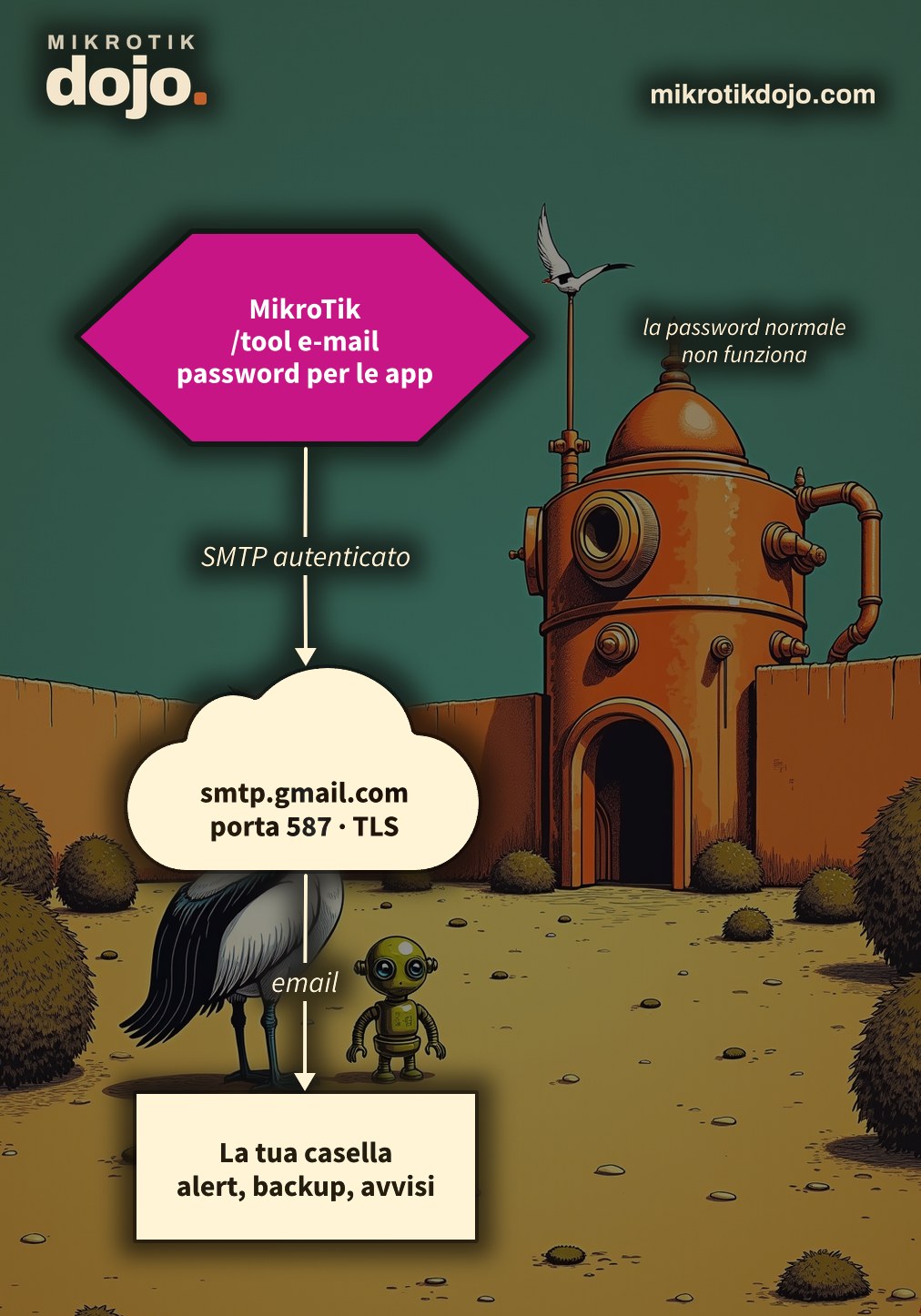
Because Google no longer accepts the account password from applications like a router. In 2016, the configuration would fail with a rejection in the log, and the reason was already this; today, access using only the password is completely closed off.
The solution is the app password: a 16-character password generated by Google, valid only for sending, revocable at any time without touching the real password. It is also more secure: if it ends up where it shouldn’t, you just revoke that one.
Step 1: How do I create the app password?
From your Google account:
- Security → enable 2-Step Verification (it is mandatory);
- search for App passwords in your account settings;
- give it a name, for example “MikroTik office”, and generate the password;
- copy it immediately: Google shows it only once.
I recommend a dedicated Gmail account for routers, not your personal one: alert emails won’t get mixed in with your regular mail, and revoking a password won’t affect anything else.
Step 2: Can the router reach Gmail?
The router must resolve smtp.gmail.com, so you need an outbound connection to the internet and a working DNS. In my lab, the DNS is 10.0.0.1: use the one from your network.
/ip dns set servers=10.0.0.1
/ping smtp.gmail.com count=3
If the ping responds from an address, the name and connectivity are fine.
Step 3: How do I configure the MikroTik?
/tool e-mail set server=smtp.gmail.com port=587 tls=starttls certificate-verification=yes \
    from="Router Ufficio <avvisi.router@gmail.com>" \
user=avvisi.router@gmail.com password="abcdefghijklmnop"port=587withtls=starttls: the connection starts in clear text and immediately switches to TLS;certificate-verification=yes: the router verifies that it is really talking to Google, using the certificates from authorities already present in RouterOS. It is disabled by default: enable it, it costs nothing;password: the app password, without spaces (Google displays it split into four groups);from: the sender that will appear in the email.
⚠️ Warning: in older tutorials, the server is specified with address=smtp.gmail.com. In RouterOS 7.24.5, that parameter no longer exists and the router responds bad parameter address: you use server=.
All parameters are in the MikroTik manual: E-mail.
Step 4: How do I test the sending?
With a test email from the terminal:
/tool e-mail send to="tuo.indirizzo@example.com" subject="Prova dal MikroTik" body="Se leggi questa mail, l'SMTP funziona."From the terminal, sending is immediate: if something goes wrong, the error appears right below the command. The errors I have seen in the lab and what they mean:
AUTH failed: the router reached Gmail, the TLS connection is fine, but the username or app password is wrong;error connecting to server: the router cannot reach the server, so check DNS, outbound internet connection, and firewall.
When sending is triggered by a script, the error ends up in the log instead:
/log print where topics~"e-mail"
/tool e-mail print
The second command shows in last-status how the last send went.
Step 5: What do I do once it’s configured?
Anything that needs to notify someone. For example, a weekly backup sent via email, using the scheduler:
/system scheduler add name=backup-settimanale interval=7d on-event={
    /system backup save name=backup-auto password=una-password-robusta
    :delay 5s
    /tool e-mail send to="tuo.indirizzo@example.com" subject=("Backup " . [/system identity get name]) \
        body="Backup settimanale in allegato." file=backup-auto.backup
}
The password on the backup is not a minor detail: without it, the file is not encrypted, and an email with the router’s configuration attached in plain text is the last thing you want in your inbox.
And then there are the alerts from other howtos: the unauthorized DHCP server and unknown devices on the LAN.
Step 6: what do I check before putting it into production?
The password for the apps remains saved in the router’s configuration: the RouterOS 7 export hides it, but anyone who logs into the router can use it. Protect access to the router with the Basic hardening of a MikroTik router, and if the router changes hands, revoke the app password from your Google account.
Tested in the lab on PNETLab with CHR RouterOS 7.24.5 (stable): configuration of /tool e-mail towards smtp.gmail.com with STARTTLS and certificate verification, up to authentication (with test credentials, hence response AUTH failed), and the backup scheduler with attachment. The full send with a real Gmail account and the steps in the Google account have not been tested.
Frequently asked questions
What are the SMTP parameters for Gmail on MikroTik?
Server smtp.gmail.com, port 587, tls=starttls, user equal to the Gmail address and, as password, an app password generated from the Google account. certificate-verification=yes is also recommended.
Why does Gmail reject the account password?
Google no longer accepts the account password from applications such as routers: you need an app password, which can only be created with two-step verification enabled.
Why does the /tool e-mail set address= command give an error?
In recent RouterOS 7 the parameter is called server: address= from old tutorials returns bad parameter address.
Can I use another provider instead of Gmail?
Yes, /tool e-mail works with any SMTP server: only the server address, port, TLS type and credentials indicated by the provider change.
How do I send a file as an attachment from MikroTik?
With the file= parameter of /tool e-mail send, specifying the name of a file present in the router’s memory, for example a password-protected backup.
This howto updates a 2016 article on my old blog wirelessguru.it, now offline, to RouterOS 7.